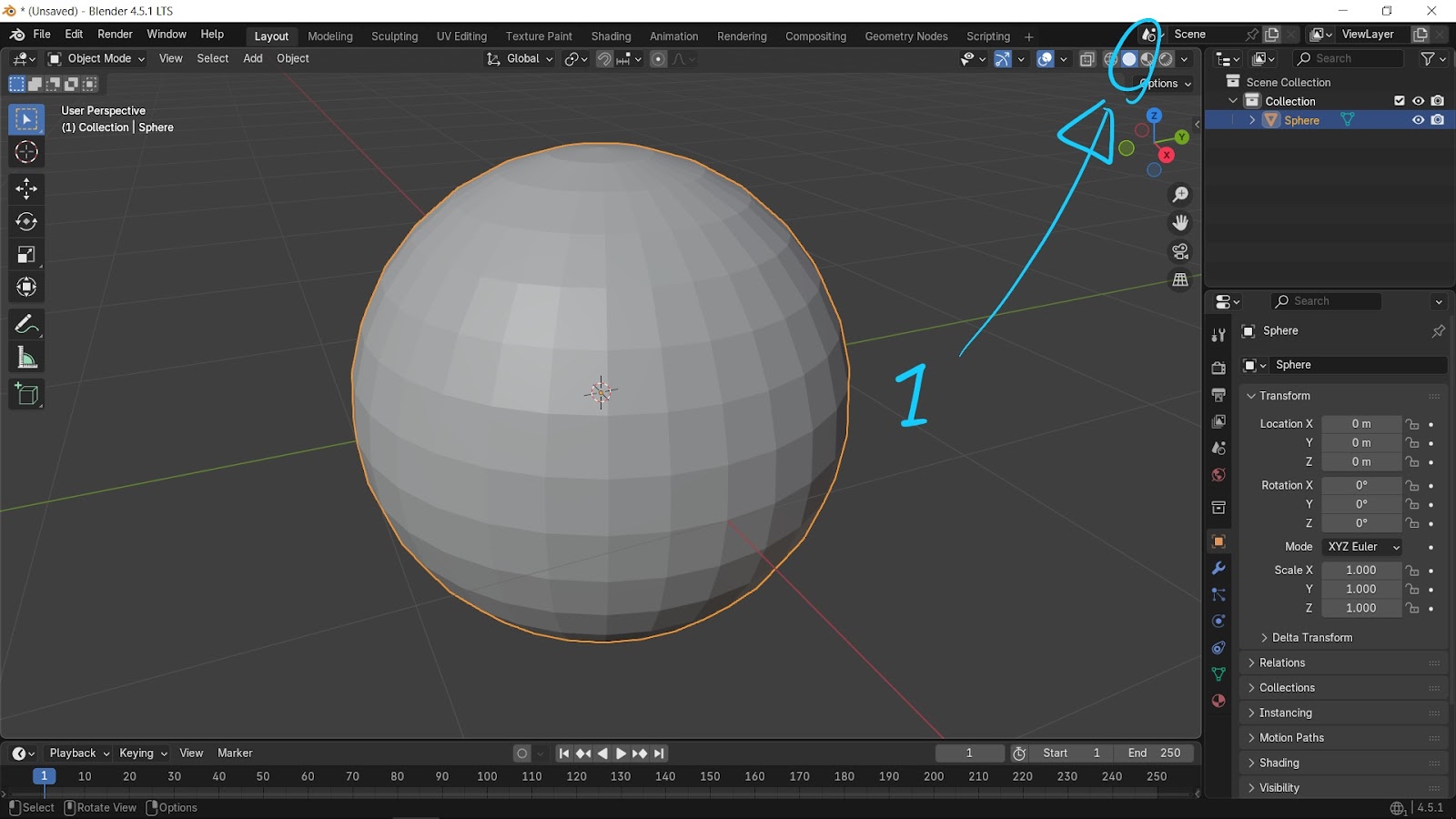
Learn how to cut something in half in Blender using the Bisect tool—quick, precise, and perfect for modeling.
If you’ve ever needed to split a mesh cleanly down the middle, you already know that not every method gives you a nice, even cut. The Bisect tool in Blender solves that problem. It’s fast, it’s accurate, and it handles the messy cleanup work for you.
I just watched a great tutorial from cgian that walks through the entire process using Suzanne the Monkey as an example. Here’s exactly how it works.
How to Cut Something in Half in Blender Step by Step
1. Add Your Object and Jump Into Edit Mode
Start by adding whatever mesh you want to cut. In the tutorial, they use Suzanne, but this works on any object.
Once your object is in the scene:
- Select it
- Press Tab to enter Edit Mode
- Hit A to select all vertices
Then go to the Mesh menu at the top and choose Bisect. A cutting plane will appear on your object.
2. Position the Cut Plane for a Perfect Split
Here’s where the precision comes in. You’ll see options to control exactly where and how the cut happens.
Set the plane coordinates to zero to center the cut. Then adjust the normal vector to control the angle of your cut. Want a straight vertical slice? Set it to cut along the X or Y axis. Want something at an angle? You can dial that in too.
A quick tip: switching to front view (press Numpad 1) makes it much easier to see what you’re doing.
3. Use the Fill Option to Close the Cut Face
After you bisect, you’ll have an open hole where the cut happened. Instead of manually filling that in later, just check the Fill box in the Bisect options. The tool closes that face automatically.
This alone saves a ton of time.
4. Clear Outer or Inner to Keep Only What You Need
Want to keep just one half of your object? Use the Clear Outer or Clear Inner options.
- Clear Outer removes everything on the outside of the cut plane, keeping the inner half
- Clear Inner does the opposite
This is especially useful for symmetry work or when you only need one side of a model.
5. Fine-Tune the Cut Angle
Don’t like the angle? Go back and adjust the normal vector values. This lets you tilt the cutting plane in any direction, giving you complete control over how your object splits.
Common Questions About the Bisect Tool in Blender
Does this work on any mesh object?
Yep. Suzanne, cubes, imported models—anything with editable geometry.
Can I cut at an angle, not just straight down the middle?
Absolutely. That’s what the normal vector controls. Change the X, Y, or Z values to rotate the cutting plane.
What if I forget to fill the cut face?
You can always go back and fill it manually by selecting the edge loop and pressing F. But checking the Fill box during the bisect is way easier.
What does Clear Outer actually do?
It removes everything on one side of the cutting plane. So if you bisect and check Clear Outer, you’re left with only the inner half of your mesh.
Is this permanent? Can I undo it?
Bisect modifies your mesh directly. But you can always hit Ctrl+Z to undo, or duplicate your object first if you want to keep the original intact.
Wrapping Up
Bisect is one of those Blender tools that feels simple but opens up a ton of possibilities once you know how to use it. Whether you’re splitting a character model for symmetry work, cutting a prop in half for 3D printing, or just cleaning up geometry, this method gets the job done cleanly.
The tutorial breaks everything down in under two minutes, and it’s worth watching if you want to see the process in action.
Watch the full tutorial here: How to Cut Something in Half in Blender
If you found this helpful, consider subscribing to cgian’s channel—they put out practical Blender tips that actually save time.
by blenderian
Read more,
How to Mirror an Object in Blender