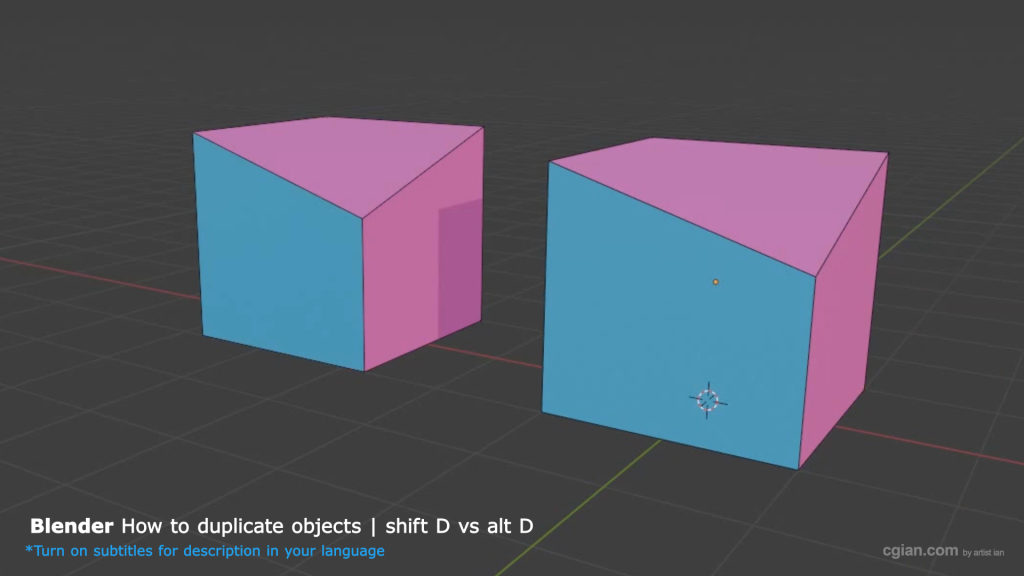
If you’ve ever needed to know how to flatten a curved surface in Blender, this guide walks you through the exact steps using a UV sphere as an example. Whether you’re cleaning up a model or prepping geometry for further edits, flattening faces along an axis is a skill you’ll use often.
How to Flatten a Curved Surface in Blender: Step by Step
Start with a Simple Sphere
Open Blender and add a UV sphere. Before doing anything else, reduce the segment and ring counts. Something like 16 segments and 8 rings works well. Fewer polygons means easier selection and faster edits.
Select the Faces You Want to Flatten
Switch into Edit Mode. Hover over the area you want to flatten and press Alt + click to grab an entire loop of faces. This is much faster than manually clicking each face one by one.
Flatten Along the Z-Axis
With your faces selected, press S to scale, then Z to constrain to the Z-axis, then type 0. Hit Enter. The selected faces collapse into a perfectly flat surface along that axis.
You can do the same thing through the menu by scaling and typing zero in the resize panel, but the shortcut is quicker once you get used to it.
Flatten Along Other Axes
The same idea works for any direction. Press S, then X, then 0 to flatten along the X-axis. Press S, then Y, then 0 for the Y-axis. Whatever axis you constrain to is the direction the geometry flattens toward.
Frequently Asked Questions
Can I flatten faces along a direction other than the Z-axis?
Yes. Just swap the axis key. S > X > 0 flattens along X, and S > Y > 0 flattens along Y.
Why should I lower the segment and ring count on a UV sphere?
A simpler mesh is easier to work with. Fewer faces means faster selection, less visual clutter, and no lag while editing.
What does Alt + click do in Edit Mode?
It selects a full edge loop or face loop in one click. It’s one of the most useful selection shortcuts in Blender.
What if I make a mistake?
Press Ctrl + Z to undo. Scaling operations are undone just like any other action.
Does this technique work on other objects?
Yes. Any mesh object with faces can be flattened this way.
Watch the Full Tutorial
Want to see it done in real time? Check out the video here:
https://www.youtube.com/watch?v=H81qAofN1-I&t=46s
Practice on a few different shapes, try the X and Y versions, and it’ll become second nature.
by Blenderian
Read More,
Blender Select Ngons: The Fastest Way to Identify Problematic Faces