If you want to learn how to mirror objects in Blender without using the Mirror Modifier, this guide walks you through two quick, shortcut-based techniques that work on any mesh. Using the default monkey mesh, Suzanne, as an example, you’ll see exactly how to create mirrored duplicates in seconds—no modifiers required.
Watch YouTube Tutorial here,
Method 1: Mirror with the Ctrl+M Shortcut
The fastest way to mirror an object is the dedicated mirror shortcut:
- Select your object in the viewport.
- Press Ctrl + M to begin the mirror operation.
- Press X, Y, or Z to choose the axis you want to mirror across. You can also pick an axis from the bottom bar interface.
- Confirm the transformation with a left mouse click.
You can fine-tune the result afterward in the Mirror panel, where axis and orientation settings can be adjusted directly in the interface.
Method 2: Duplicate First, Then Mirror
If you want more control over placement, duplicate the object before mirroring it:
- Select the object and press Shift + D to duplicate it.
- Confirm the duplication with a right-click.
- Move the duplicated object to its new position.
- Right-click to open the context menu and choose the mirror option.
- Select the axis to mirror across—for example, Z Global.
This approach gives you a clear, manual alternative: position the copy exactly where you want it, then mirror it along your chosen axis.
Quick Tips
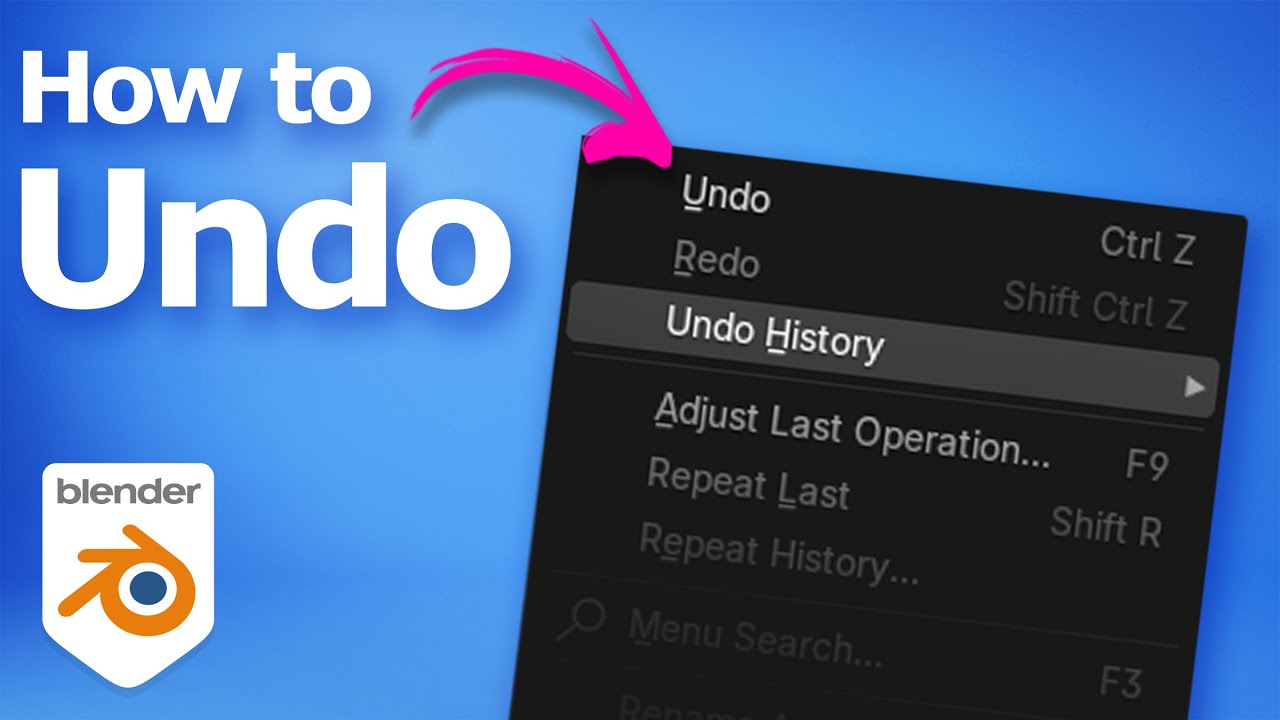
- Wrong axis? Press Ctrl + Z to undo and try again—the axis you choose defines the mirror plane, so accuracy matters.
- Local vs. global axis: Switch orientation settings in the Mirror panel to mirror along global, local, normal, and other orientations.
- Multiple objects: Select several objects at once and either method will apply to everything selected.
- Modifiers vs. shortcuts: Modifiers offer non-destructive, adjustable mirroring, but these shortcut methods give you fast, direct control when a modifier isn’t needed.
Frequently Asked Questions
Can I mirror complex objects without modifiers using these methods?
Yes—both the shortcut and duplication methods work on any selected mesh object in Blender.
Is using the Mirror Modifier better than these methods?
Modifiers are non-destructive and easy to adjust later, but these techniques are quicker when you just need a direct, one-off mirror.
How do I mirror along a local axis instead of global?
Change the orientation setting in the Mirror panel to switch between global, local, normal, and other options.
Can I mirror multiple objects at once?
Yes—select all the objects you want, and Ctrl+M or duplication-based mirroring will apply to the whole selection.
Conclusion
These two approaches show how to mirror objects in Blender without using the Mirror Modifier: the Ctrl+M shortcut with axis keys for one-step mirroring, and duplication (Shift+D) combined with the right-click mirror option for more manual control. Practice both on different objects to see which fits your workflow, and combine them with other Blender transformations to speed up your modeling.
by Blenderian
Read more,
Blender How to Display Poly Count