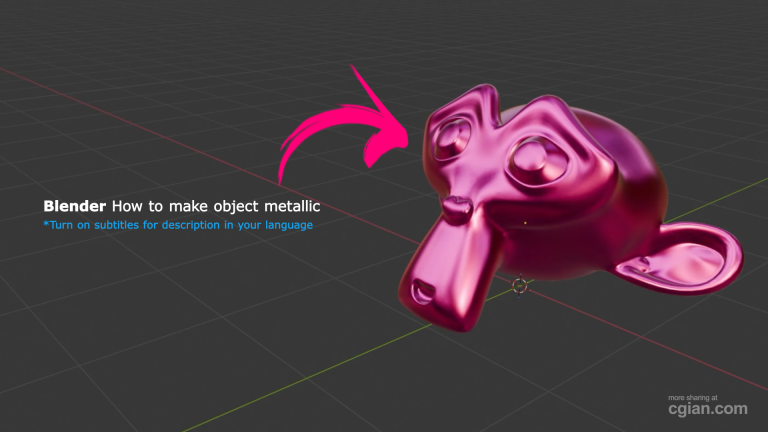
Learn to create realistic metal in 3D! Master the Blender Principled BSDF Metallic Shader with this quick guide to achieve polished, professional surfaces today. If you’ve ever stared at a dull, flat 3D model in your viewport, desperately trying to figure out why your “metal” just looks like painted plastic, you know the frustration. I’ve spent hours wrestling with lighting, only to realize the issue wasn’t my scene—it was my shader settings. There is nothing quite as jarring as a supposedly polished surface that looks like it was dipped in matte gray clay. When you finally hit that sweet spot, you should be able to almost feel the cold, sharp bite of steel or the smooth, heavy weight of gold right through your monitor.
Achieving that realistic look is easier than you think once you master the Blender Principled BSDF metallic settings.
Creating Realistic Metal in Blender
- Prepare Your Geometry: Start by adding your mesh (like the Suzanne monkey). Right-click and select “Shade Smooth” to remove harsh angles. To really refine the look, add a Subdivision Surface modifier—this is crucial for creating that high-end, polished surface.
- Initialize the Shader: Switch your viewport to Material Preview mode. Create a new material and ensure you are using the default Principled BSDF shader.
- Activate the Metallic Property: Locate the “Metallic” slider in your material settings. Drag this value all the way to 1.0. This is the magic switch that tells Blender to treat the surface as a true metal.
- Fine-tune the Finish: Adjust the “Base Color” to your liking, then manipulate the “Roughness” slider. A low roughness (near 0) creates a mirror-like, polished chrome finish, while increasing it gives you a soft, brushed metal look.
Ready to see these adjustments in action? Follow along with this step-by-step visual guide to perfect your materials: Watch the Tutorial Here
Frequently Asked Questions
Q: Do I need to change the base color if I want a realistic metal look?
A: Yes! While setting the metallic value to 1 is the technical first step, the “Base Color” will dictate what kind of metal you are creating—gold, copper, or steel all rely on specific color tones to look authentic.
Q: Why does my object still look “faceted” or bumpy after adding the metallic shader?
A: This is likely a geometry issue. Always remember to use “Shade Smooth” and a “Subdivision Surface” modifier to ensure the surface is perfectly round and polished before you finalize your material.
Q: What is the main difference between low and high roughness on a metallic material?
A: Think of it as a reflection test. Low roughness (close to 0) creates sharp, mirror-like reflections, perfect for polished chrome. High roughness scatters the light, resulting in a soft, brushed, or matte metallic finish.
Q: Can I use this technique for non-metallic objects?
A: Absolutely. The Principled BSDF is a universal shader. For non-metals, you would simply keep the metallic value at 0 and adjust the specular and roughness values to simulate materials like plastic, glass, or ceramic.
Would you like me to create a list of common lighting setups that pair best with these metallic shaders?
by Blenderian
Related Post,
Blender how to add sphere
Blender Pink Texture Fix: How to Stop the Magenta Nightmare
