If you’ve ever wondered how to keep track of your model’s complexity in Blender, this tutorial by CG Ian shows you exactly how to display poly count using two simple methods. Whether you’re a 3D artist, a Blender beginner, or someone who wants to monitor mesh statistics efficiently, this guide will help you access critical polygon data in seconds.
What You’ll Learn
This tutorial teaches you how to display poly count in Blender so you can monitor vertices, edges, faces, and triangles directly in the interface. By the end, you’ll know two practical techniques that improve your workflow by making mesh statistics easily accessible.
Method 1: Enable Scene Statistics in the Status Bar
The first method for how to display poly count involves the bottom status bar:
- Right-click on the bottom status bar.
- Enable the “Scene Statistics” checkbox.
- The status bar now displays the count of vertices, faces, triangles, and objects in your scene.
This gives you a quick, always-visible overview of your scene’s complexity.
Method 2: Use Viewport Overlays
The second method for how to display poly count uses the viewport overlays menu:
- Open the viewport overlays menu in the 3D viewport.
- Check the “Statistics” box.
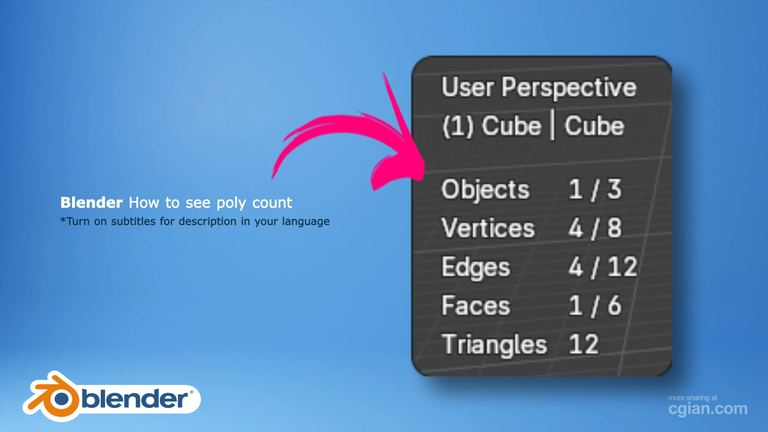
- Counts for vertices, edges, faces, and triangles appear directly in the viewport.
This approach keeps the numbers visible right where you’re modeling.
watch tutorial video here, https://youtu.be/wS8VZaIYlEU?si=LP61-lmt-I1ASo46&t=29
Selection-Sensitive Counts
One of the most useful aspects of how to display poly count in Blender is that the statistics are selection-sensitive. When you enter edit mode and select part of a mesh—such as a single face of a cube—Blender shows separate counts for both the total and the selected components. This means you can monitor vertices, edges, and faces dynamically as you edit, giving you precise control over your model.
Why This Matters
Knowing how to display poly count is essential for managing model complexity, especially in game design or detailed modeling work. Real-time updates of selected components provide precise insight while editing, and having two different interface locations—status bar vs. viewport—offers flexible access depending on your preference. The step-by-step demonstration makes these features approachable even for Blender beginners.
Frequently Asked Questions
1. How can I see the polygon count in Blender?
Enable “Scene Statistics” from the bottom status bar by right-clicking it, or activate “Statistics” in the viewport overlays menu.
2. Does Blender show polygon count for selected parts of the mesh?
Yes, Blender displays both total and selected counts for vertices, edges, faces, and triangles.
3. Where is the polygon count displayed?
It appears either in the bottom status bar or as an overlay in the 3D viewport, depending on the method chosen.
4. Is this feature useful for beginners?
Absolutely; it helps new users monitor mesh complexity and manage their models more effectively.
5. Can I monitor polygon counts dynamically?
Yes, the counts update in real-time as you edit and select different parts of your model.
Conclusion
This tutorial successfully delivers a clear, practical explanation of how to display poly count in Blender through two accessible methods. By enabling scene statistics or viewport overlays, you gain valuable insight into your model’s complexity, supporting better modeling decisions and workflow efficiency. The demonstration of selecting mesh parts further deepens understanding, making it a helpful resource for both new and experienced Blender users. Apply these techniques during your modeling work and explore other features CG Ian offers to enhance your 3D skills.
by Blenderian
Read More,
How to Deselect Vertices in Blender: Tutorial for Faster Modeling