Trying to figure out how to rotate an object in Blender or mirror a mesh perfectly across an axis can feel like fighting the software rather than creating art, especially when your mirror modifier suddenly flips your model inside out or places it across the entirely wrong side of the 3D viewport. I’ve spent countless hours staring at lopsided characters and misplaced vertices because I didn’t understand how Blender handles geometry orientation. Here at Blenderian, I want to share the exact, frustration-free workflow I use to get perfect symmetrical models every single time. Whether you are a beginner, freelancer, or game dev, mastering this will save you hours of manual tweaking.
How to Mirror an Object in Blender
The secret to mirroring in Blender isn’t just clicking a button; it’s understanding that Blender mirrors geometry based entirely on a tiny point called the Object Origin (that little orange dot). Let’s walk through the exact steps to get this right.
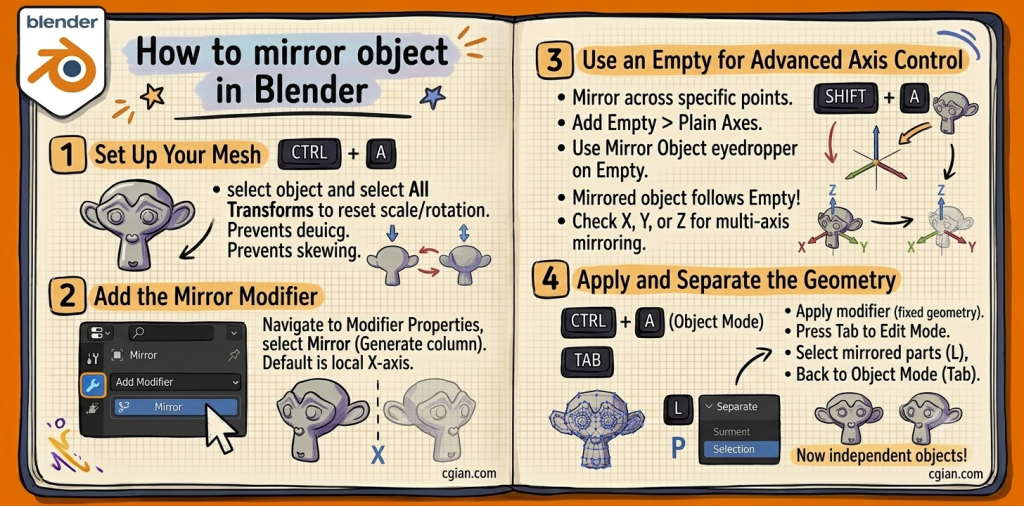
Step 1: Set Up Your Mesh
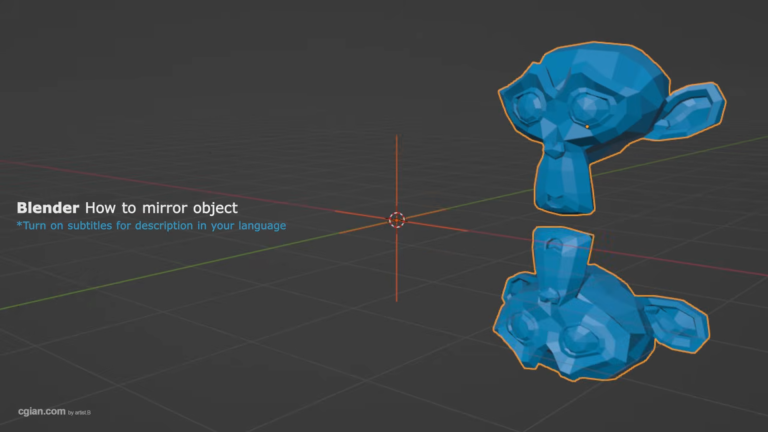
- Open your Blender scene and select the object you want to mirror. (In our example video below, we use the classic Suzanne monkey head).
- Press
Ctrl + Aand select All Transforms to reset your object’s scale and rotation. This prevents the mirror modifier from skewing wildly.
Step 2: Add the Mirror Modifier
- Navigate to the Modifier Properties panel on the right side of your screen (look for the blue wrench icon).
- Click the Add Modifier dropdown menu and select Mirror (found under the Generate column).
- By default, Blender will attempt to mirror along the local X-axis.
Step 3: Use an Empty for Advanced Axis Control
If your object’s origin isn’t perfectly centered, or if you want to mirror across a specific point in your scene without moving your original object, you need a Mirror Object.
- Press
Shift + Aand add an Empty > Plain Axes to your scene. - Select your original 3D mesh again and go back to the Mirror Modifier panel.
- Use the Mirror Object eyedropper tool to click on the Empty you just created.
- Now, wherever you move or rotate that Empty, your mirrored object will dynamically follow! You can also check the X, Y, or Z boxes in the modifier to mirror across multiple axes simultaneously.
Step 4: Apply and Separate the Geometry
- Once you are happy with the symmetry, click the downward arrow icon next to the Mirror Modifier and click Apply (or hover over it and press
Ctrl + Ain Object Mode). This converts the mirror effect into permanent, editable geometry. - Press
Tabto enter Edit Mode. - Hover over the mirrored half of your mesh and press
Lto select linked vertices, or select the specific parts you want to split. - Press
Pon your keyboard (the blender mirror object shortcut for separating) and select Selection. - Press
Tabto return to Object Mode—your mirrored half is now its own fully independent object!
Watch the Full Video Walkthrough
To see these origin points and axis selections handled in real-time, check out our timestamped video tutorial below:
Frequently Asked Questions
Q: Why does my mirrored object not appear where I expect?
A: The mirror effect depends entirely on the object’s origin position. Moving your object’s origin point or assigning a dedicated “Mirror Object” (like an Empty) fixes this instantly.
Q: Can I mirror my object along multiple axes at once?
A: Yes! Inside the Mirror Modifier settings, you can toggle the X, Y, and Z checkboxes simultaneously to create symmetry across multiple planes.
Elevate Your 3D Modeling Workflow
Ready to take your modeling speeds to the next level? Head over to our comprehensive Blenderian 3D Tools Guide to grab our custom shortcut cheat sheets and premium starter assets designed for freelancers and game developers alike.
by blenderian
Related post,
Blender how to enter Edit Mode
How to rotate object in Blender