Feel difficuty to get your 3D models to take on complex, organic, or stylized shapes without spending hours manually moving vertices? It can be incredibly frustrating when you know exactly how to rotate an object in Blender, but you just can’t seem to get the mesh to bend, twist, or taper into the specific form you need for your scene. I’ve been there—staring at a rigid, static default cube, wondering why my attempts at complex modeling feel so stifling. The good news is that mastering the right modifier is a total game-changer, and today I’m going to show you how to use the Simple Deform modifier in Blender to unlock fluid, creative control over your mesh geometry.
How to Use the Simple Deform Modifier in Blender
To get the best results, you need to ensure your mesh has enough “fuel” to deform properly. Here is how I approach the process:
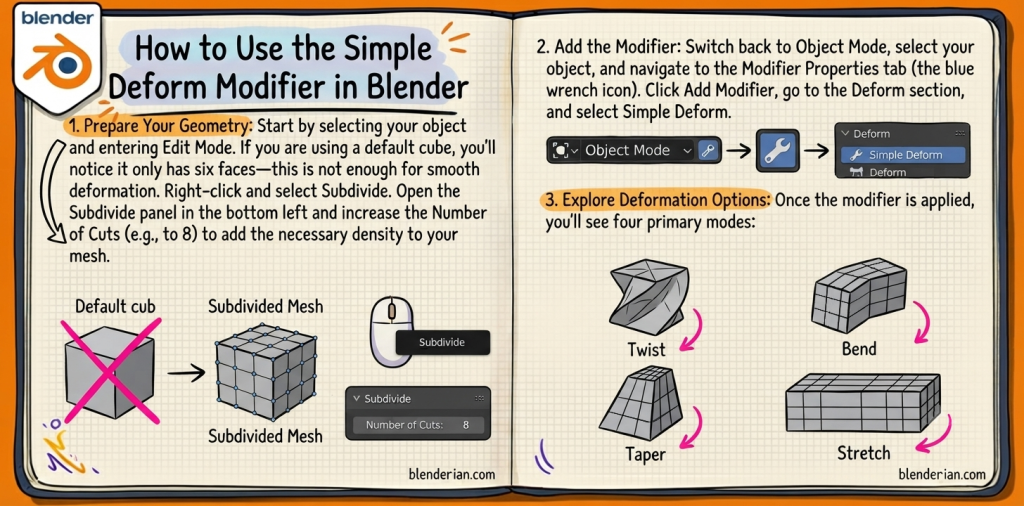
- Prepare Your Geometry: Start by selecting your object and entering Edit Mode. If you are using a default cube, you’ll notice it only has six faces—this is not enough for smooth deformation. Right-click and select Subdivide. Open the Subdivide panel in the bottom left and increase the Number of Cuts (e.g., to 8) to add the necessary density to your mesh [00:16].
- Add the Modifier: Switch back to Object Mode, select your object, and navigate to the Modifier Properties tab (the blue wrench icon). Click Add Modifier, go to the Deform section, and select Simple Deform [00:41].
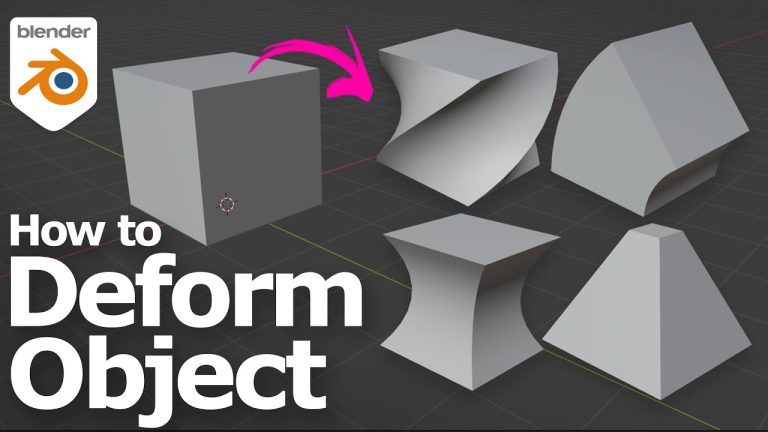
- Explore Deformation Options: Once the modifier is applied, you’ll see four primary modes:
- Combine for Complexity: Don’t limit yourself to just one. You can add multiple Simple Deform modifiers to the same stack. For instance, you can twist an object on the X-axis and then add another modifier to bend it on the Z-axis, creating intricate shapes that would be impossible to model manually [01:43].
For a visual breakdown of these techniques, check out this tutorial:
Frequently Asked Questions
Why do I need to subdivide the mesh before deforming it? The Simple Deform modifier works by moving existing vertices. If your object has very few faces, it won’t have enough geometric data to bend or twist smoothly, resulting in an unnatural, “blocky” appearance [00:23].
Can I apply more than one Simple Deform modifier to an object? Absolutely. In fact, stacking modifiers is the secret to creating complex shapes. You can adjust the axes and strength of each modifier independently to layer your effects [01:52].
What is the difference between Twist and Bend? Twist effectively rotates the mesh around your selected axis, whereas Bend creates a curve or arch along that specific axis [01:07].
How do I control the intensity of the deformation? Each deformation mode comes with an “Angle” or “Factor” parameter in the modifier settings. Simply adjust these values to increase or decrease the intensity of the effect [01:07].
Ready to level up your 3D workflow? Don’t forget to check out more tips at [Blenderian] and subscribe for the latest techniques to master your modeling toolkit!
by Blenderian
Related post,
Blender Select Ngons: The Fastest Way to Identify Problematic Faces
Blender how to extrude