When you’re deep into a complex 3D scene, struggling to edit a single mesh while dozens of other objects clutter your viewport and distract your focus can be incredibly frustrating. I’ve personally spent hours navigating through crowded scenes, trying to select the right vertices while fighting against visual noise. The good news is that you don’t have to work this way.
Learning how to efficiently isolate your work is a game-changer for productivity. Here is a rational, straightforward guide to mastering object visibility in Blender.
Why You Should Use This Blender Hide Selected Objects Tutorial
The most efficient way to manage your workspace is by utilizing Blender’s built-in keyboard shortcuts. This method allows you to instantly hide everything else in your scene, leaving only your target object visible, so you can work with precision.
The Workflow Steps:
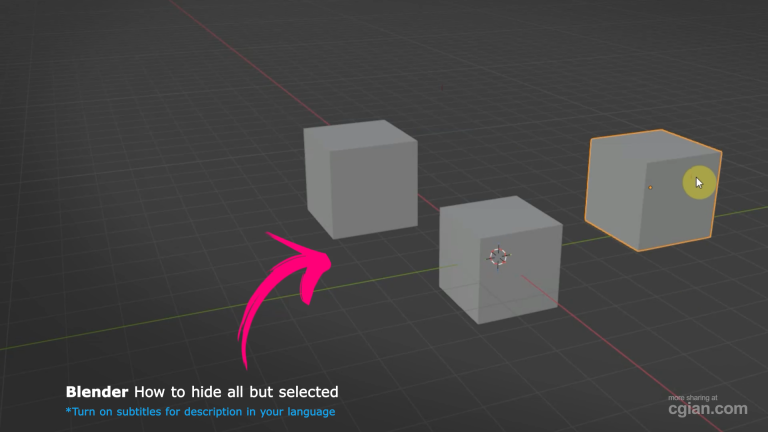
- Select your target: Click on the specific object or mesh you need to focus on.
- Isolate the object: Press Shift + H on your keyboard. This command immediately hides every other object in the scene, leaving only your selection visible.
- Restore the scene: Once you have finished your edits and need to see the full composition again, press Alt + H. This shortcut reveals all hidden objects simultaneously.
By making these shortcuts part of your muscle memory, you can jump between focused work and full-scene viewing in milliseconds. It effectively removes the “visual clutter” that often slows down modeling and texturing tasks, ensuring that you remain focused on the details that matter most.
Ready to see this technique in action and improve your scene management? Check out the full breakdown here: Blender Hide Selected Objects Tutorial.
Frequently Asked Questions
- How do I hide all objects except the one I’m working on? Select the object and press Shift + H.
- How can I show the hidden objects again? Press Alt + H to reveal everything in the scene.
- Is this effective for large, complex projects? Yes, this is one of the most effective ways to declutter a workspace, allowing you to troubleshoot and edit specific parts of a large scene without distractions.
- What if I select the wrong object? If you isolate the wrong item, simply press Alt + H to unhide everything and restart the selection process.
Would you like to explore more keyboard shortcuts to speed up your general 3D modeling workflow?
by Blenderian
Related Posts,
Blender how to add sphere
How to undo in Blender