I still remember the absolute frustration of spending hours meticulously modeling a complex array of assets in Blender, only to realize I’d made a massive mistake across every single copy. I was staring at my monitor, the cold, hum of my PC fans sounding like a jet engine in my quiet room, while my head was absolutely pounding. I had duplicated everything manually, and because I didn’t understand how my objects were linked, I was trapped in a cycle of deleting and re-modeling. It felt like I was trying to paint a masterpiece while the canvas kept shrinking. If you’ve ever felt that soul-crushing realization that your “efficient” workflow was actually a massive bottleneck, you aren’t alone. You need to stop what you’re doing and learn the difference between these two shortcuts right now.
Why Your Duplication Method Makes or Breaks Your Scene
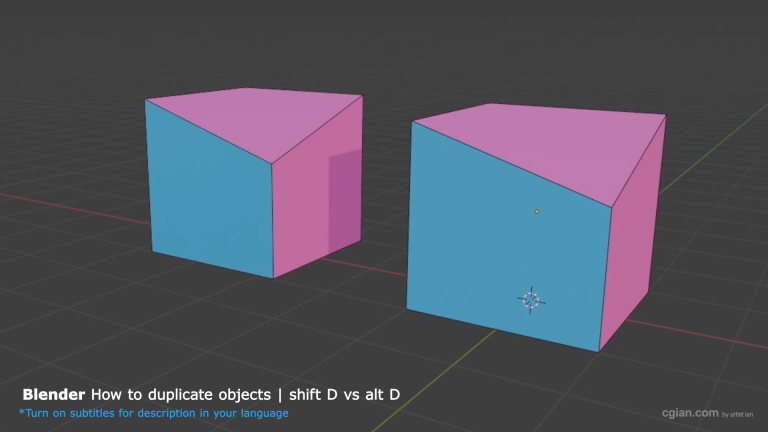
It seems simple, right? Just hit a key combination and multiply your object. But the difference between Shift D and Alt D in Blender is the secret sauce to keeping your sanity during a big project.
- Shift + D (The Independent Clone): Think of this as a “Copy-Paste.” When you use this, Blender creates an entirely new, independent object. If you want to change the color, the shape, or the material of this duplicate later without touching the original, this is your go-to. It’s perfect for when you need variation.
- Alt + D (The Linked Twin): This is where the magic (and efficiency) happens. This creates a “Linked Duplicate.” Whatever you do to the original—whether you tweak a vertex, move a face, or change the material—the linked object updates instantly. It’s a lifesaver for complex scenes where you have recurring elements. Plus, it’s much easier on your computer’s memory because it’s sharing the data rather than duplicating it entirely.
Stop Guessing and Start Optimizing
The biggest mistake I see beginners make is using Shift + D for everything, only to realize later they need to update fifty objects at once. Alternatively, using Alt + D when you actually need unique variations will cause more headaches than it saves.
It’s all about knowing your project needs:
- Need variety? Shift + D.
- Need consistency and performance? Alt + D.
If you want to see exactly how these changes ripple through your mesh in real-time, you have to watch this breakdown. It clicked for me the second I saw the materials update on the screen.
Check out the exact moment the difference becomes obvious here.
by Blenderian
Related Post,
Blender how to extrude
How to rotate object in Blender