Are you struggling how to move objects in Blender, controls feeling like your 3D models are stuck in place while your workflow slows to a crawl? I’ve been there—when I first started in Blender, navigating the 3D viewport felt clunky, and I constantly fought to get my assets exactly where I needed them. Whether you are a budding VFX artist or a game developer just starting your journey, mastering movement is the single most important step toward professional productivity. In this guide, I’ll show you exactly how to master Blender how to move object on axis using three professional methods that will make your workflow feel fluid and intuitive.
How to Move Objects in Blender: 3 Proven Methods
Mastering the movement of your objects is foundational. Here are the three ways I personally use to keep my scene organized and precise:
1. Using the Move Gizmo (Visual Control)
The gizmo is the most intuitive starting point for beginners, perfect for when you need to “eyeball” a placement.
- Select your object in the viewport.
- Ensure the “Move” tool is active (look for the transform arrows on your object).
- Move along an axis: Click and drag the colored arrows (Red for X, Green for Y, Blue for Z).
- Move along a plane: Click and drag the small colored squares located between the arrows to lock movement to that specific plane.
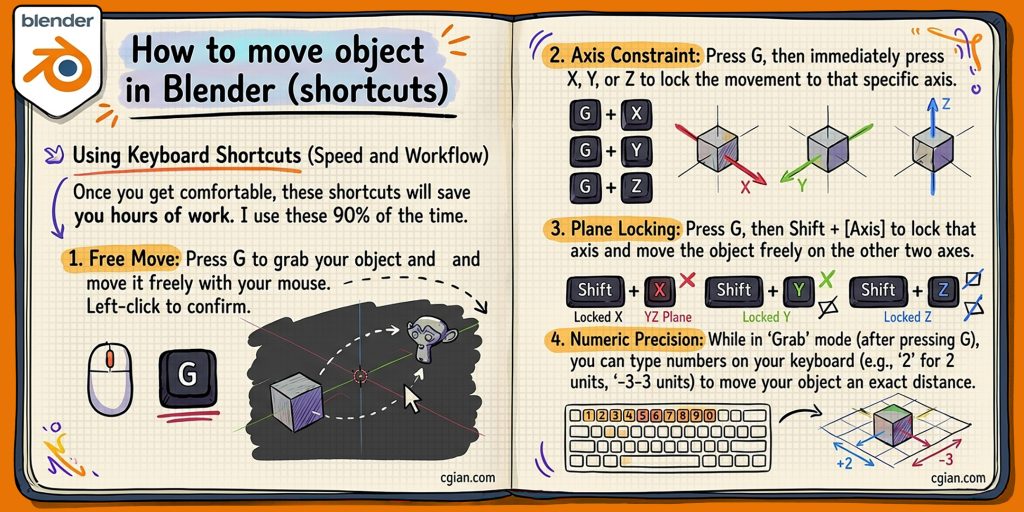
2. Using Keyboard Shortcuts (Speed and Workflow)
Once you get comfortable, these shortcuts will save you hours of work. I use these 90% of the time.
- Free Move: Press G to grab your object and move it freely with your mouse. Left-click to confirm.
- Axis Constraint: Press G, then immediately press X, Y, or Z to lock the movement to that specific axis.
- Plane Locking: Press G, then Shift + [Axis] to lock that axis and move the object freely on the other two axes.
- Numeric Precision: While in “Grab” mode (after pressing G), you can type numbers on your keyboard (e.g., “2” for 2 units, “-3” for -3 units) to move your object an exact distance.
3. The Transform Panel (Numerical Accuracy)
When you need surgical precision or need to snap an object back to the center of your scene, the N-panel is your best friend.
- Press N on your keyboard while in the viewport to open the side menu.
- Click the Item tab to reveal the Location, Rotation, and Scale values.
- Click and drag the values for X, Y, or Z to slide the object.
- Type directly into the fields for exact coordinates.
- Pro Tip: Set all location values to 0 to instantly snap your object to the world origin.
Watch the Tutorial on YouTube
To see these techniques in action, check out this guide by CG Ian:
https://youtu.be/0fhjIob48HQ?si=53845V-IDXmusvsP&t=84
Just a reminder
Moving objects is the bread and butter of your 3D workflow in Blenderian. By mixing the visual ease of the gizmo, the blazing speed of keyboard shortcuts, and the absolute precision of the transform panel, you’ll find that navigating your scene becomes second nature. Ready to level up your 3D skills? Explore our other beginner tutorials and start building your dream project today!
by blenderian
Related Posts,
How to undo in Blender
Blender how to show poly count
Blender How to move object for animation