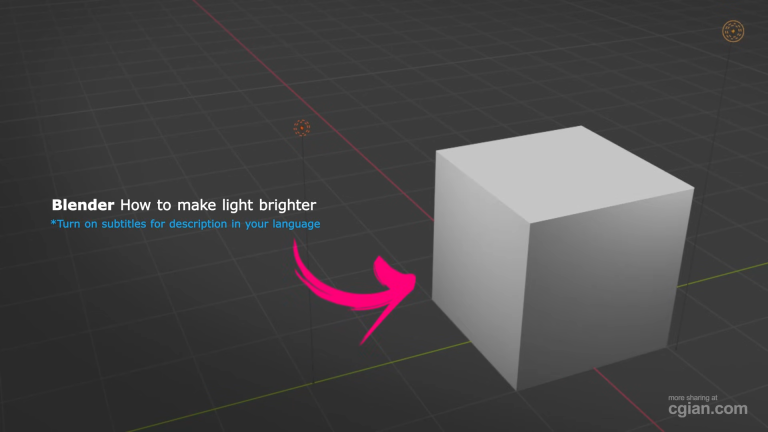
Blender light strength is one of the most fundamental settings that can make or break your 3D renders. Whether you’re a beginner or intermediate user, understanding how to control brightness in your scenes will dramatically improve your final results.
Controlling Blender Light Strength is Simpler Than You Think
The key to better lighting isn’t complicated. In fact, with just a few adjustments, you can transform a dark, flat scene into something vibrant and professional-looking.
Here’s the straightforward approach to getting brighter renders:
Adjust the Power Setting Directly
The most direct way to increase blender light strength is through the object data properties panel. When you select your light source, you’ll find a “Power” setting that controls its intensity. Simply increase this value while viewing your scene in render preview mode to see real-time changes.
- Select your light source in the scene
- Navigate to the object data properties tab
- Increase the Power value
- Watch the render preview for instant feedback
Reposition Your Lights
Here’s something many users overlook: blender light strength isn’t just about numbers. Sometimes moving your existing light closer to the area you want brightened is more effective than cranking up the power. This gives you more natural-looking results and prevents overexposure in other parts of your scene.
Add Additional Light Sources
When one light isn’t cutting it, add more. You can easily incorporate point lights, sun lights, spotlights, or area lights depending on your scene requirements:
- Press Shift + A or use the Add menu
- Navigate to Light
- Select your preferred light type
- Position it where needed
- Adjust individual power settings
This approach gives you granular control over different areas of your scene, allowing you to highlight specific objects or areas while maintaining balanced overall lighting.
Quick Troubleshooting Tips
Why isn’t my light bright enough?
Check that you’re viewing in render preview mode. Solid view mode won’t show accurate lighting results.
How do I brighten just one area?
Move your light closer to that specific spot, or add a new light directed at that area.
What’s the fastest way to add more light?
Use the Add menu > Light > choose your light type. Position it and adjust its power.
Key Techniques to Remember
- Render preview mode is essential for seeing accurate lighting changes
- Power values directly control brightness intensity
- Light positioning affects brightness distribution
- Multiple light sources give you more control over your scene
- Different light types serve different purposes
Watch It in Action
For a complete walkthrough of these techniques with visual demonstrations, check out this tutorial that shows exactly how to implement these lighting adjustments step by step:
👉 Watch the full tutorial here
Final Thoughts
Mastering blender light strength is essential for creating professional-quality renders. The combination of adjusting power settings, repositioning lights, and strategically adding new sources gives you complete control over your scene’s atmosphere and clarity.
Start with the default scene and experiment with these techniques. Try increasing power, moving lights closer, and adding extras. You’ll quickly see how these simple adjustments can dramatically improve your final renders.
by blenderian
Related Posts,
How to Render Viewport Animation in Blender for Lightning-Fast Previews