If you have ever wanted to know how to render viewport animation in Blender without committing to the long render times of Cycles or Eevee, the “Playblast” feature is the game-changing workflow you are missing.
As animators and 3D artists, our biggest bottleneck is often the wait time between making a change and seeing the result. While final renders are for polishing, the iterative phase requires speed. This is where rendering directly from the 3D viewport becomes essential.
In this guide, we will break down the exact settings and steps to create a quick preview render—often referred to as a “Playblast”—directly from your viewport. This allows you to check motion, timing, and composition instantly, significantly speeding up your workflow.
What is a Viewport Render (Playblast)?
A playblast render is essentially a screengrab of your 3D viewport exported as a video file. Instead of processing lighting, shadows, and complex shaders, Blender records exactly what you see on your screen. This is perfect for:
- Checking Animation Timing: Ensuring your keyframes look smooth.
- Client Reviews: Sharing a quick WIP (Work in Progress) without the polish.
- Storyboarding: Getting a feel for the camera movement.
Step 1: Setting Up Your Viewport Display
Before you hit render, you need to decide how your animation will look. Blender offers several viewport shading modes, and you can switch between them depending on your needs.
- Wireframe: Best for checking bone structure and rigging mechanics.
- Solid: A clean, clay-like look that eliminates visual distractions.
- Material Preview: Gives a rough idea of textures and colors (though it is slower to process).
Ensure your camera is positioned correctly in the 3D viewport, as Blender will render exactly what is visible in the active view.
Step 2: Configuring the Output Properties
To successfully render viewport animation, you need to adjust your Output settings correctly. This is where you control the quality and format of your preview.
- Resolution: Set your desired pixel dimensions. For a quick preview, 50% of the standard render size is usually sufficient.
- Frame Range: Define the start and end frames of your animation. Make sure this matches your timeline.
- File Format: This is crucial. You have two main options:
- Image Sequence (PNG/JPEG): Safer for long animations (if Blender crashes, you don’t lose everything).
- Video (MP4): More convenient for immediate playback.
- Encoding: If you choose video, select the H.264 codec and MP4 container. This offers the best balance between file size and playback compatibility.
Step 3: Running the Render
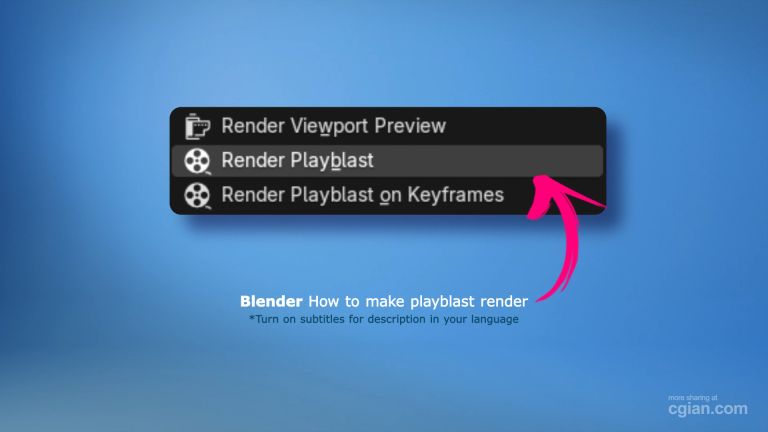
Now that everything is configured, go to the Render menu at the top of the Blender interface and select “Render Playblast” (or use the shortcut via the viewport menu).
Blender will render each frame from the viewport, bypassing the heavy render engine. Within seconds (or minutes depending on your animation length), you will have a video file saved to your specified output folder.
Frequently Asked Questions
1. Is a viewport render as good as a final render?
No. It is designed purely for preview purposes. It lacks global illumination, depth-of-field, and high-quality shadows.
2. Why is my playblast video choppy?
Check your viewport settings. If you are in “Material Preview” mode with heavy textures, the frame rate might drop. Switching to “Solid” mode often results in smoother renders.
3. Can I use the viewport render to test lighting?
You can, but it won’t be accurate. The viewport preview is an approximation. For accurate lighting, you still need a final render.
Conclusion
Learning how to render viewport animation in Blender is one of the fastest ways to supercharge your animation workflow. By utilizing the Playblast feature, you save precious time, allowing you to focus on the art of movement rather than waiting for rendering.
The process is simple: adjust your shading, set your output properties, and render. Whether you are a beginner trying to understand the basics or a professional animator fine-tuning a complex shot, this technique is invaluable.
Ready to see it in action?
👉 Watch the Full Step-by-Step Walkthrough Here: https://youtu.be/hrtpp9di06c?si=N-rZpcIK0g48wEXJ&t=64
If you found this guide helpful, don’t forget to follow for more Blender tips and tricks!
by blenderian
Related post,
How to Array Object Along Curve in Blender 5 (New Modifier, No Hassle)
How to Add HDRI in Blender: A No-Nonsense Guide for Realistic Renders
Mastering the Blender Principled BSDF Metallic Shader