Are you tired of fighting with your mesh, struggling how to add vertex to curve in Blender when your shape just isn’t complex enough? I have spent countless hours staring at a simple Bézier path, frantically pressing every shortcut in the book, only to feel that familiar, sharp frustration rise in my chest as the geometry refuses to budge. The clicking of my mechanical keyboard sounds particularly hollow and mocking when I’m stuck on a workflow bottleneck like this.
We’ve all been there. Whether you are modeling a winding garden hose or a complex stylized character hair strand, knowing how to manipulate curve points is essential. It is not just about adding points; it is about maintaining the flow of your design without losing your mind.
How to Add Vertex to Curve in Blender: Step-by-Step
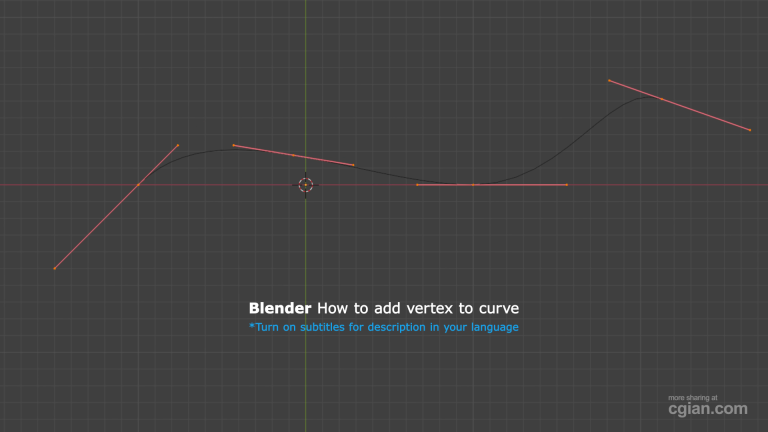
If you need to increase the resolution of your curve or add detail exactly where you need it, follow these steps to add a new control point:
- Select the Curve: First, make sure you are in Object Mode and select your curve object.
- Enter Edit Mode: Press
Tabon your keyboard to switch into Edit Mode. - Select the Segment: You cannot just click in empty space. You must select the specific segment of the curve where you want to add a new vertex. Click on one of the existing control points, then
Shift + Clickthe adjacent control point to highlight the segment between them. - Subdivide: With the segment highlighted, right-click to bring up the context menu and select Subdivide.
- Adjust: Once the new vertex appears, you can grab it using the
Gkey to move it and reshape your curve as needed.
Pro-tip: If you need to add a vertex to the very end of an open curve, select the end vertex, then hold Ctrl and Right-Click anywhere in the viewport to extrude a new point.
Watch step visual on YouTube Tutorial,
Frequently Asked Questions
Q: Can I add a vertex to a closed loop curve? A: Yes! The subdivision method works perfectly on closed loops. Just select the two points you want to bridge, right-click, and choose Subdivide.
Q: Is there a shortcut for subdividing? A: While there isn’t a direct default hotkey for subdivision in all versions, you can right-click the segment for a quick menu access, or use the Search menu (F3) and type “Subdivide.”
Q: Will adding vertices change the shape of my curve? A: Generally, no. A simple subdivision creates a new point along the existing mathematical path, keeping your curve shape intact until you manually move the new point.
Ready to Master Blender Curves?
Still feeling a bit stuck on the intricacies of curve handles and interpolation? Visualizing the workflow is often the best way to get it to click.
Check out this video tutorial to see exactly how it’s done in real-time!
by blenderian
Related post,
How to Array Object Along Curve in Blender 5