Staring at a flat, uncooperative viewport mesh while trying to bridge a gap can completely stall a creative session. I remember the exact moment of frustration when I first tried to connect two floating points in a complex model, only to watch my carefully planned topology warp into a chaotic mess. The harsh blue glow of my monitor felt blinding, and the faint, rhythmic hum of the computer case seemed to mock my stalled progress. If you have ever felt that sudden spike of panic when your polygons refuse to cooperate, you know how crucial it is to understand the exact geometry rules under the hood.
Connecting vertices cleanly is one of those foundational skills that separates stumbling through a project from sculpting with absolute confidence.
Step-by-Step Instructions
- Enter Edit Mode: Select your mesh object and press Tab to switch into Edit Mode.
- Switch to Vertex Select: Ensure you are in vertex selection mode (or press 1 on your keyboard) so you can target individual points.
- Select Your Points: Hold down Shift and click on the first vertex, then click on the second vertex you want to connect.
- Choose Your Connection Method:
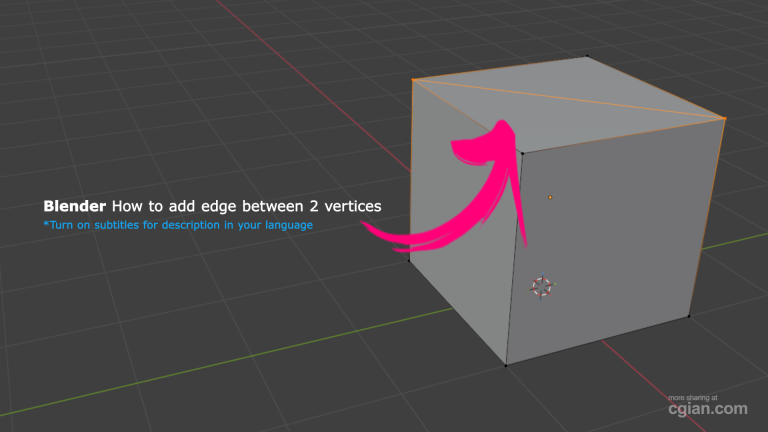
- Press F if you want to create a simple edge between the two selected vertices without dividing the underlying face.
- Press J if you need an edge that actively connects the vertices while cleanly splitting the adjacent face to update your topology.
- Verify Your Mesh: Toggle between vertex and face selection modes to inspect how the new edge interacts with your model’s overall geometry.
Watch steps visually,
Frequently Asked Questions (Q&A)
- Q: What does the ‘F’ key do in Blender’s edit mode?A: It creates an edge between two selected vertices without splitting any surrounding faces.
- Q: How can I split a face while adding an edge?A: Select two vertices and press J instead of F to add an edge that also splits the face into two parts.
- Q: Can I undo adding an edge if I make a mistake?A: Yes, pressing Ctrl + Z will instantly undo your last action.
- Q: Why should I switch between vertex and face selection modes?A: It helps you visually confirm how the new edge affects your mesh topology and whether a face has been properly split.
- Q: Is this technique applicable only to cubes?A: No, these methods apply to any mesh object in Blender when you are editing topology.
To watch a full visual walkthrough of these techniques in action, check out the video guide here: https://youtu.be/FZrPGaUQ9Cg
by Blenderian
Related Posts,
Why Undo in Blender Is More Powerful Than You Think
How to rotate object in Blender