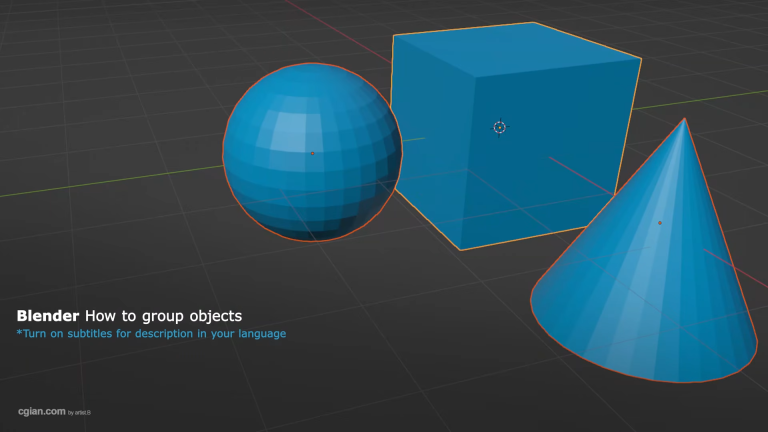
If you’re wondering how to group objects in Blender, the answer lies in understanding the power of Collections. This essential skill can transform your workflow and make managing complex scenes much easier.
Whether you’re working on a simple project or a massive 3D environment, knowing how to organize your objects will save you time and frustration. Let me show you exactly how to do it.
What Are Collections in Blender?
Collections are Blender’s way of grouping objects together. When you add a new object to your scene, Blender automatically places it into a collection. Think of collections like folders on your computer – they help you keep everything organized.
Many beginners don’t realize they’re already using collections from the moment they start their first project. The default “Collection” in your scene contains everything you create until you decide to organize things differently.
Step-by-Step: How to Group Objects Using Collections
Step 1: Add Objects to Your Scene
Start by adding your 3D objects. For this example, let’s say you’ve added a sphere and a cone to your default Blender scene. These objects automatically land in your active collection.
Step 2: Create a New Collection
To create a dedicated group for specific objects:
- Select the objects you want to group
- Press the M key on your keyboard
- A pop-up menu appears – choose “New Collection”
- Name your collection (something like “3D Mesh” or “Props”)
- Click “OK”
Your selected objects are now moved into this new collection.
Step 3: Select All Objects in a Collection
Once objects are grouped, you can select them all at once:
- Right-click any object in the collection
- Or use the shortcut Shift + G to select the entire group
This is where the real power of grouping shines – you can grab everything together instantly.
Step 4: Transform Your Group
With all objects in your collection selected, you can transform them as a unit:
- G key: Move everything together
- S key: Scale everything together
- R key: Rotate everything together
These shortcuts work on the entire collection at once, making it incredibly efficient to reposition, resize, or rotate groups of objects.
Step 5: Rename Collections
You can rename any collection at any time. When creating a new collection with the M shortcut, you’re prompted to name it immediately. Clear naming helps you find things quickly in complex scenes.
Why Grouping Objects Matters
Grouping objects through collections isn’t just about keeping things tidy – it’s about working smarter:
Speed: Instead of selecting individual objects one by one, you select entire groups instantly
Consistency: Moving, scaling, or rotating groups together ensures everything stays in the right position relative to each other
Organization: Named collections make it easy to find specific objects in scenes with hundreds of items
Workflow: Professional Blender users rely on collections to manage character parts, environment elements, lighting setups, and more
Common Questions About Grouping in Blender
Can I have objects in multiple collections?
Yes! Objects can belong to multiple collections, giving you flexible organization options.
Do I need to create collections for everything?
Not necessarily. Start grouping when your scene becomes complex enough that you’re spending time searching for objects.
What’s the difference between grouping and parenting?
Grouping (collections) organizes objects visually without affecting their relationship to each other. Parenting creates parent-child relationships where moving the parent moves the children. They serve different purposes.
Can I use collections in animation?
Absolutely. Collections help organize animated elements and make it easier to select groups of objects for keyframing.
Taking Your Blender Skills Further
Understanding how to group objects in Blender is just the beginning. Collections integrate with many other Blender features – from viewport visibility to rendering settings. Once you’re comfortable with basic grouping, you can explore more advanced collection management techniques.
Ready to Master This Technique?
Theory only gets you so far. Watching someone work through grouping objects in real-time can make all the difference in understanding this workflow.
Check out this detailed video tutorial that walks you through grouping objects in Blender using collections:
👉 Watch the Full Tutorial Here
The tutorial covers everything from adding objects to grouping, selection shortcuts, and transformations – all in under two minutes!
Final Thoughts
Grouping objects in Blender is one of those fundamental skills that pays dividends every time you work on a project. Whether you’re building simple models or complex scenes, collections help you stay organized and work efficiently.
Your next step: Open Blender right now and practice creating collections with a few objects. Try moving, scaling, and rotating them as a group. Once you’ve got the basics down, the video tutorial above will help you refine your technique.
Happy blending! 🎨
by blenderian
Related Posts,
How to Blender Lock Object in Place
How to Add a New Window in Blender