How to select entire edge loop in Blender is one of those questions that comes up constantly—and for good reason. If you’re spending too much time clicking individual edges, you’re working way harder than you need to.
Here’s the direct answer: Alt + Left Click on any edge. That selects the whole loop instantly. But there’s more to it than just that shortcut, and knowing the variations will save you hours of modeling time.
The Shortcut You Actually Need: How to Select Entire Edge Loop in Blender
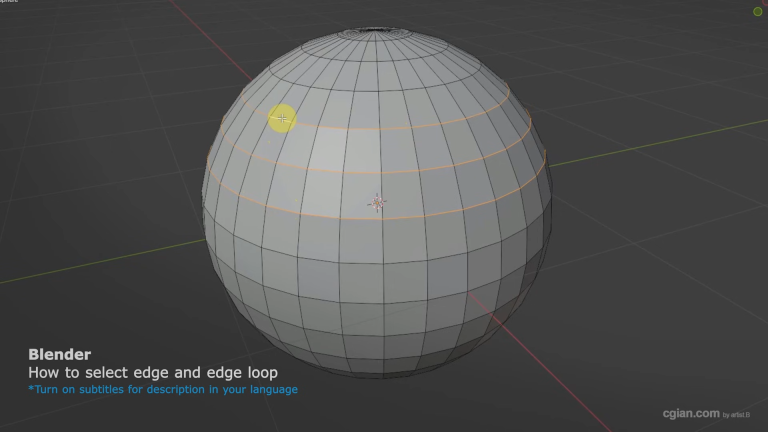
The Alt+Click method works in Edge Select mode. Press 2 on your keyboard to switch to Edge Select (or click the edge icon in the top bar). Then hold Alt, click any edge, and Blender grabs the entire loop running around your mesh.
Why this matters: In the video tutorial, the presenter starts with a UV Sphere to demonstrate this clearly. Edge loops are critical for controlling topology, adding detail, or making clean cuts. Without this shortcut, you’d be selecting edges one by one—and nobody has time for that.
Beyond the Basics: Selecting Multiple Edge Loops
Here’s where things get even faster. Once you know how to select entire edge loop in Blender, you’ll often need to grab several loops at once.
Hold Alt + Shift and click on multiple edge loops. Each one adds to your selection. This is perfect for:
- Adding support loops around a model
- Selecting ring areas for extrusion
- Isolating sections for UV unwrapping
For disconnected edges, use Ctrl + Shift + Click to pick edges that aren’t touching. It’s not a loop selection, but it’s useful when you need specific edges scattered across your model.
Quick Reference: Selection Modes in Blender
- 1 = Vertex Select
- 2 = Edge Select
- 3 = Face Select
Switch between them without clicking menus. In Edge Select mode, your options are:
| Action | Shortcut |
|---|---|
| Select single edge | Click |
| Select edge loop | Alt + Click |
| Select multiple loops | Alt + Shift + Click |
| Select edge range | Ctrl + Click |
| Add to selection | Shift + Click |
| Deselect all | A |
Common Questions About Edge Loop Selection
What if Alt+Click selects faces instead?
Check your selection mode. Press 2 to ensure you’re in Edge Select. If you’re in Face or Vertex mode, the shortcut behaves differently.
Can I select edge loops in other selection modes?
Yes. In Vertex Select, Alt+Click selects the vertices along the loop. In Face Select, it selects the faces. But Edge Select gives you the cleanest control for edge-specific work.
Why use a UV Sphere for practice?
The sphere has clear, uniform edge loops that make the selection visually obvious. It’s easier to see what you’re selecting compared to more complex shapes.
Putting This Into Practice
Here’s the fastest way to get comfortable with edge loop selection:
- Open Blender
- Delete the default cube (X key)
- Add a UV Sphere (Shift + A > Mesh > UV Sphere)
- Press 2 for Edge Select
- Hold Alt and click different edges around the sphere
Try selecting multiple loops with Alt+Shift. Try Ctrl+Click to select a range. Spend five minutes just playing with these shortcuts—muscle memory makes all the difference.
Final Thought
Mastering how to select entire edge loop in Blender isn’t just about knowing a shortcut. It’s about moving through your modeling work without stopping to think about basic selections. The more automatic this becomes, the faster your workflow gets.
Still not entirely clear on how edge loops work in practice?
Watch the full video tutorial here:
👉 https://youtu.be/jstPTpICqYE?si=5sjRTqOyDSzbLjjc&t=66
The video walks through each method step by step, so you can see exactly what’s happening in the viewport. It’s short, direct, and shows you the techniques in real time—way easier to pick up than reading about them.
by blenderian
related post,
How to Add an Edge Between Two Vertices in Blender
How to Use an Object to Cut Another in Blender