If you’ve ever wondered how to make vertices more circular in Blender, you’re not alone. It’s one of those tasks that seems like it should be dead simple—until you try it and end up with a lumpy mess. Whether you’re modeling a mechanical part, smoothing out organic shapes, or just trying to clean up sloppy geometry, getting a perfect circle from a grid of vertices is a game-changer.
I’ll walk you through two reliable ways to do it, why they work differently, and which one you’ll want to reach for depending on what you’re building.
Why “just selecting and scaling” won’t cut it
Let’s get this out of the way: if you select four vertices on a cube face and scale them, you’ll get a diamond, not a circle. That’s because you don’t have enough points to form a curve. The secret to making vertices more circular in Blender is giving Blender enough geometry to work with.
Start with a cube, drop into Edit Mode (hit Tab), and add some loop cuts with Ctrl+R. Click around the middle of each face to add a few rings—the more cuts you add, the smoother your final circle will be. For most practice work, two or three loop cuts per face are plenty.
Now you’ve got vertices all around that edge. Select them (use the circle selector or hold Shift while clicking). You’re ready for the real tricks.
Method one: the To Sphere tool for quick results
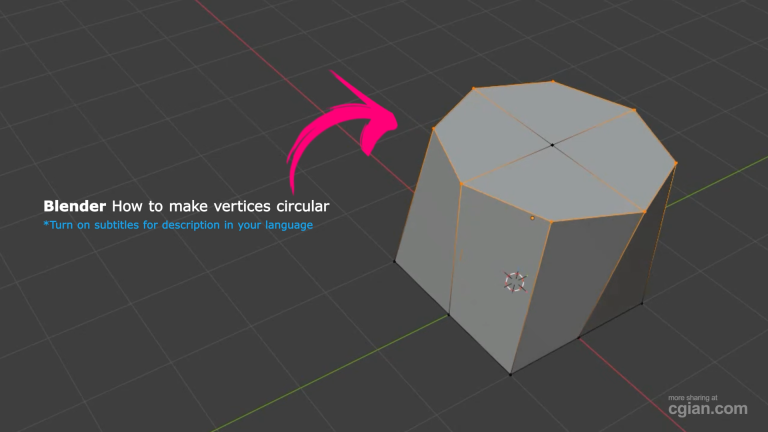
The first way to get vertices more circular in Blender is almost embarrassingly easy. With your edge vertices selected, hit Shift+Alt+S—or go to the top menu, Mesh > Transform > To Sphere.
A little slider pops up in the bottom-left corner (or at the top of your screen, depending on your Blender version). Drag it to 1.0, and watch those vertices snap into a near-perfect circular arc.
What’s happening under the hood? The To Sphere tool pulls every selected vertex toward an imaginary sphere’s surface, using the center of your selection as the anchor. Crank the factor all the way up, and you get a clean circular layout. It’s fast, it’s intuitive, and it works on any selection—not just edges, but whole faces or clusters of vertices.
Method two: the To Circle tool for precision control
Sometimes you need more than “close enough.” That’s where the To Circle transform steps in.
With your vertices still selected, go to Mesh > Transform > To Circle. Unlike To Sphere, this tool flattens your selection into a mathematically perfect circle on a single plane. You’ll see options appear: Vector (set it to 1 for standard alignment), Rotation (handy if you want to snap the circle to a specific angle, like 45°), and Radius (lets you shrink or expand the circle precisely).
This method is brilliant when you’re working on mechanical parts, panel cutouts, or anything where the circular shape needs to be exact. The downside? It can feel a bit stiff compared to To Sphere’s organic movement, but that’s exactly what you want for hard-surface modeling.
Which one should you use?
- To Sphere: go-to for organic shapes, quick tweaks, and when you’re blending the circle into other curved surfaces.
- To Circle: your best bet for engineering-style models, symmetrical designs, or when you need absolute control over size and rotation.
Honestly, I use both in the same project all the time. Start with To Circle to lock in a perfect circle, then nudge it with To Sphere to soften the edges. Experiment and see what clicks for your workflow.
A few things that trip people up
- Forgetting to add enough geometry. If your circle looks like a polygon, you don’t have enough loop cuts. Add more before you transform.
- Working in the wrong view. Switch to top view (Numpad 7) before transforming—it saves you from weird off-axis distortions.
- Selecting extra vertices by accident. Use wireframe mode (Z > Wireframe) to check your selection. Nothing ruins a circle like a stray vertex pulling it lopsided.
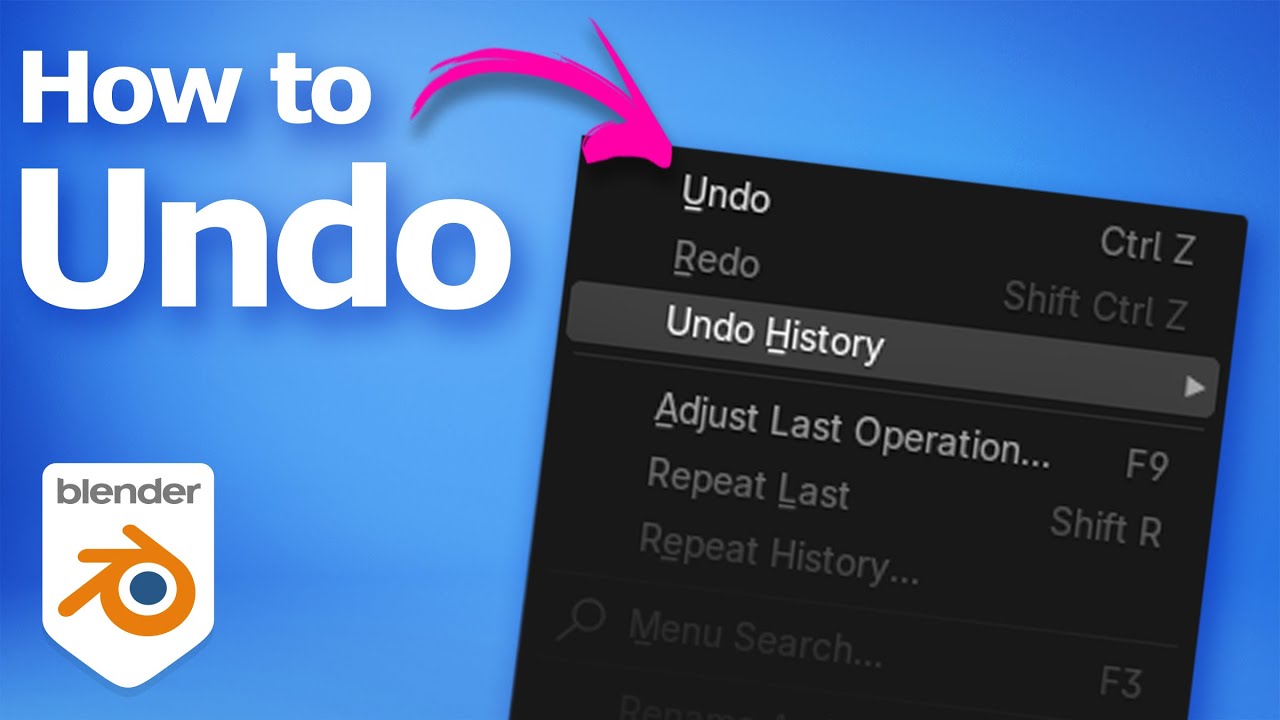
- Not using Undo. Ctrl+Z is your safety net. Mess up? Just rewind and try again.
Putting it all together
Once you’ve got your circular vertices locked in, the rest of your modeling gets way easier. You can extrude along the circle to create pipes, use it as a guide for bevels, or even duplicate it to build complex patterns. Mastering how to make vertices more circular in Blender isn’t just a neat trick—it’s one of those core skills that saves you hours of fiddling.
The tools are right there in the Transform menu, but seeing them in action makes a huge difference. That’s exactly why I recommend watching this short walkthrough—it shows you every click, every shortcut, and every little gotcha in real time.
👉 Watch the full step-by-step video tutorial here – it’s under two minutes and covers both methods with clear on-screen visuals.
Grab your cube, fire up Blender, and give both techniques a try. Before you know it, you’ll be circling vertices like it’s second nature. And if you get stuck, just hit play on that video—it’s got your back.
by Blenderian
Releated Posts,
Blender Set 3D Cursor to Vertex: The Essential Shortcut You Need to Know