Master How to Blender Lock Object in Place with this quick guide. Stop accidental edits and improve precision. Video demo included. Does this sound familiar? You’re deep into a complex Blender project, everything’s looking perfect, and then you accidentally nudge an object out of position. Hours of work disrupted by one stray click. Here’s how to blender lock object in place and finally put an end to those frustrating mistakes.
Why You Need to Blender Lock Object in Place
Locking objects in Blender isn’t just about preventing accidents—it’s about working smarter. When you’re dealing with complex scenes containing dozens of objects, having the ability to lock specific transformations gives you surgical control over your workflow.
Stop fighting with your viewport. Instead of constantly undoing accidental moves, you can simply lock position, rotation, or scale on any axis. This means:
- No more accidentally shifting that perfectly aligned prop
- No more scaling errors that throw off your entire composition
- No more rotation mishaps that ruin your carefully crafted angles
How to Access the Lock Controls
Open your Blender project and select any object. You have two main ways to access the lock settings:
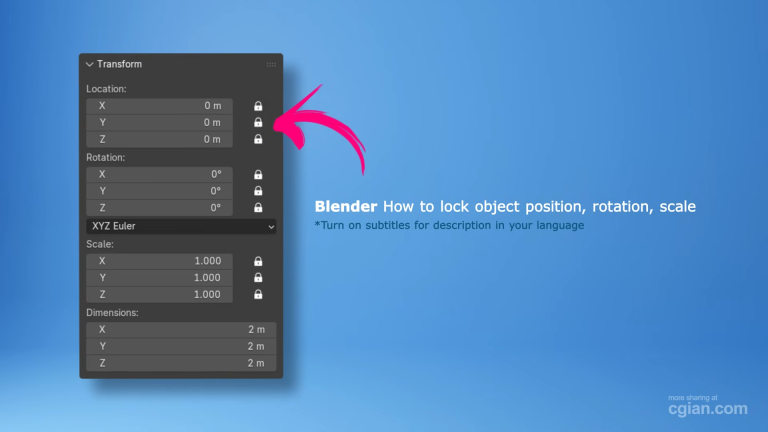
- The Object Properties Panel – Look for the lock icons under the Transform section
- The Transform Panel – Press N to open the sidebar, then navigate to the Transform section
That’s it. Two simple access points that give you complete control over your object’s freedom of movement.
Step-by-Step: Locking Position Axes
Here’s where the magic happens. Let me walk you through locking position axes:
- Select your object (the default cube works great for practice)
- Open the Transform panel
- You’ll see three lock icons for X, Y, and Z axes
- Click the lock icon next to any axis you want to freeze
Pro tip: When you lock an axis, you’ll actually see the corresponding movement arrow disappear from your transform gizmo. It’s instant visual feedback that your lock is working.
Want to test it? Try moving your object after locking X and Y. You’ll only be able to move along the Z axis. Lock all three, and your object becomes completely immovable.
Locking Rotation and Scale
The same principle applies to rotation and scale:
- Rotation locks prevent rotation on specific axes
- Scale locks keep your object’s proportions intact
Switch your gizmo mode to rotation or scale, and you’ll see the same lock options. This is particularly useful when you’re modeling something symmetrical and want to maintain perfect proportions.
Common Mistakes and How to Avoid Them
“I locked everything but my object still moves!” – Make sure you’ve locked the right transform type. Position, rotation, and scale locks operate independently.
“The arrows aren’t disappearing!” – Double-check that you’re in the correct transform mode for the locks you’ve applied.
“This isn’t saving my lock settings!” – Transform locks are per-object and per-session. If you want permanent locks, you’ll need to save your Blender file.
Practical Applications
Here are three scenarios where locking objects transforms from “nice to have” to “absolutely essential”:
- Architectural visualization – Lock reference objects to keep your base structure stable while you experiment with furnishings
- Character rigging – Lock body parts while testing animations to prevent accidental deformation
- Product visualization – Lock your product’s position while experimenting with different lighting setups
Advanced Tips
- Shortcut key mastery – Press N to instantly access the Transform panel
- Undo is your friend – Don’t forget Ctrl+Z works perfectly before locking transforms
- Combine locks – Lock position on some axes while leaving rotation and scale fully adjustable
Watch It in Action
Sometimes seeing is believing. I’ve created a quick video demonstration that walks you through everything I’ve covered here—plus a few tricks I couldn’t fit into this post.
Watch the complete tutorial here: https://youtu.be/0QU4K5Pu1OQ?si=cS7WTJGHAuU43WIz&t=64
In this 1.5-minute tutorial, CG Ian shows you exactly how to:
- Locate lock settings in two different panels
- Lock and unlock position axes
- Apply the same principles to rotation and scale
- Verify your locks are working
The video timestamp at 1:04 demonstrates the rotation and scale locks in action—watch how the gizmo responds instantly to your lock choices.
Final Thoughts
Locking objects in Blender isn’t complicated, but it’s one of those techniques that separates organized 3D artists from everyone else. Once you start using these controls, you’ll wonder how you ever modeled without them.
Your next step: Open Blender, grab any object, and practice locking and unlocking every transform type. Test the limits. Move things when they’re locked, try to scale locked objects, rotate locked axes. Getting comfortable with these controls now will save you countless headaches later.
Ready to master Blender object controls? Watch the full tutorial now and transform your workflow: https://youtu.be/0QU4K5Pu1OQ?si=cS7WTJGHAuU43WIz&t=64
Did this guide help you finally master object locking in Blender? Drop a comment below—I’d love to hear how you’re using these techniques in your own projects.
by blenderian
Related Posts,
How to rotate object in Blender
Blender How to Split Object into Two