Learning how to separate objects in Blender is one of those essential skills that makes 3D modeling so much easier to manage. Whether you’re working on character modeling, environment design, or just need to break apart a complex mesh, knowing the right separation techniques saves tons of time and frustration.
Mastering Mesh Separation Techniques in Blender
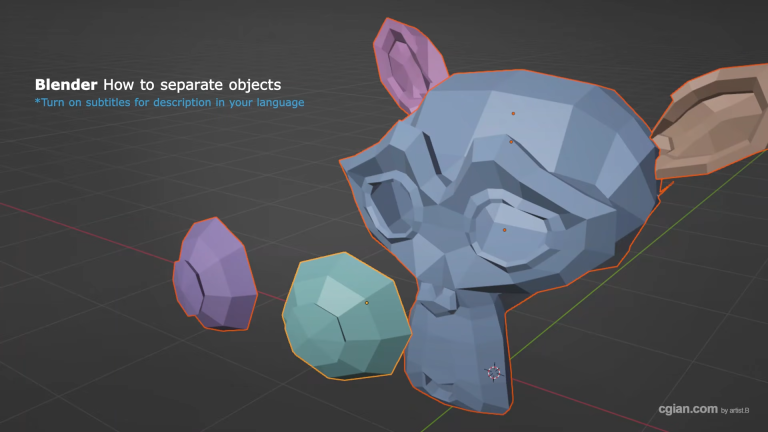
The most common way to separate objects in Blender involves using the P shortcut key while in Edit Mode. But depending on what you need, there are actually several different methods you can use. Each one works best for specific situations, and understanding when to use each technique can dramatically improve your workflow. Below is using Monkey Suzzan for making separation.
Separation to Monkey Suzzan,
Separation by Loose Parts
When you’ve got mesh components that aren’t physically connected, like the eyes on a character model, separating by loose parts is the fastest approach. Just hit Tab to enter Edit Mode, press P, and choose “By Loose Parts.” Blender instantly splits everything that’s not connected into separate objects. This method is perfect for cleaning up imported models or breaking down complex geometry into manageable pieces.
Separation by Selection
Sometimes you need more control over exactly what gets separated. In these cases, you’ll want to manually select specific faces first. Enable X-Ray mode (press Alt+Z) to see through the mesh, making it easier to select exactly what you need. Use face selection mode, pick your faces, press P, and choose “Selection.” Your selected faces become their own object while the rest of the mesh stays intact.
Separation by Material
Here’s a brilliant technique that saves tons of time when working with models that already have different materials assigned to different parts. Assign materials to specific face groups while in Edit Mode, then press P and select “By Material.” Blender automatically separates everything based on material assignments, creating separate objects for each material group. This is incredibly useful when you’ve got a model with clearly defined material zones.
Pro tip: Switch to Material Preview mode (found in the viewport shading options) to clearly see which faces have which materials before you separate.
Splitting Every Face into Individual Objects
For the ultimate in granular control, you can turn every single face of your mesh into its own object. This technique requires two steps:
- Go to Mesh > Split > Faces by Edges (or use the shortcut)
- Then separate by loose parts
This approach works great when you need to manipulate individual faces separately, create complex particle effects, or prepare models for specific animations.
Common Questions About Separating Meshes
Can I separate objects without losing material assignments?
Yes! When you use any separation method, materials stay attached to the faces they were assigned to. Each new object maintains its material properties perfectly.
What’s the difference between splitting and separating?
Splitting creates edges within a mesh but keeps it as one object, while separation actually creates entirely new objects from selected geometry.
Why can’t I see my separated parts?
You might be in Edit Mode still. Press Tab to switch to Object Mode to view and manipulate your new objects individually.
Practical Applications and Workflow Benefits
Understanding how to separate objects in Blender opens up numerous possibilities in your 3D workflow. Here are some practical use cases:
- Character Modeling: Break a character model into separate parts (head, hands, feet) for easier UV unwrapping and texturing
- Animation: Separate rigged parts for more natural movement
- 3D Printing: Split large models into printable sections
- Game Development: Organize assets by separating functional parts
- Scene Assembly: Break down complex environment elements for better scene management
Taking Your Blender Skills Further
Now that you know how to separate objects in Blender, you’re ready to handle complex modeling projects with confidence. These separation techniques form the foundation of good scene organization and efficient workflows.
Ready to see these techniques in action? Watch the complete video tutorial here for a visual walkthrough that makes everything click:
https://youtu.be/uFWqhq6RYvM?si=yFk_DiY9FiPDKsWe&t=140
Practice these methods on your own projects, experiment with different selection techniques, and soon mesh separation will become second nature. If you found this helpful, consider subscribing to stay updated with more practical Blender tutorials.
by Blenderian
Related post,
Blender How to Split Object into Two