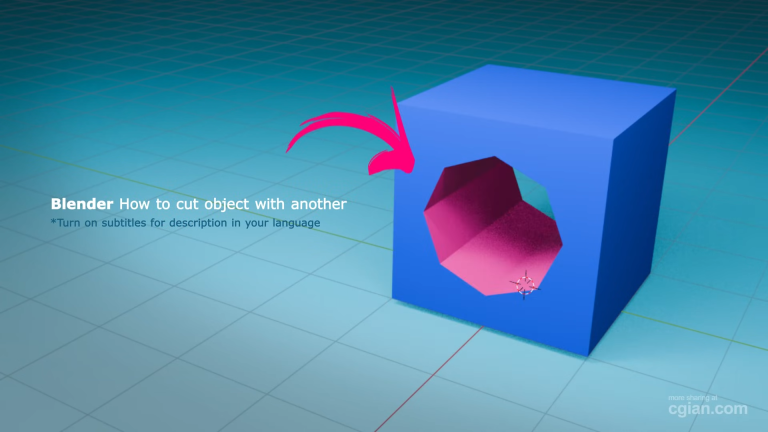
This guide walks you through how to use an object to cut another in blender using the Boolean modifier. We’ll cut a cube with a cylinder, step by step, from opening Blender to applying the final cut.
Step 1: Set Up Your Scene
Open Blender and start with the default scene. Keep the default cube – that’s what we’ll cut.
Add a cylinder to serve as your cutting tool:
- Press Shift + A > Mesh > Cylinder.
- Press R to rotate it so it passes through the cube at the angle you want.
- In the bottom-left properties panel (or press N to open the sidebar), adjust the cylinder’s dimensions – make it longer and thinner so it clearly pierces through the cube.
- Reduce the number of vertices on the cylinder to 8 (found in the “Add Cylinder” popup). Fewer vertices keep the calculation fast and the result clean.
Step 2: Position the Cutting Object
Move and rotate the cylinder so it intersects the cube exactly where you want the cut. Use G to grab and R to rotate freely. The cut will happen right at the overlap between these two objects.
Step 3: Add the Boolean Modifier
Select the cube (the object you want to cut). Then:
- Go to the Modifiers tab (the wrench icon in the properties panel).
- Click Add Modifier and choose Boolean from the “Generate” section.
- Set the Operation to Difference – this subtracts the cylinder’s shape from the cube.
- Click the Object picker (the eyedropper) and select your cylinder from the list.
You should see the cut appear on the cube instantly.
Step 4: Hide the Cutting Object for Clarity
With the Boolean active, both objects are still visible, which can clutter your view. To see only the cut result:
- Open the Outliner (top-right panel listing all objects).
- Click the eye icon next to the cylinder to hide it from the viewport.
The cut stays in place, and now you can clearly inspect the cube with the hole or groove.
Step 5: Handle Materials (Optional)
If your cube and cylinder have different materials, the inside faces of the cut will use the cube’s material by default. To change that:
- In the Boolean modifier settings, find the Solver dropdown.
- Switch it to Material Transfer.
- Now the internal faces created by the cut will pick up the cylinder’s material, which makes the inside look distinct from the outside.
Step 6: Apply the Modifier (or Keep It Live)
You have two choices:
- Apply it: click the down arrow next to the modifier and choose Apply. This permanently changes the cube’s geometry. After that, moving the cylinder won’t affect the cut anymore.
- Leave it live: keep the modifier unapplied. You can later move, rotate, or resize the cylinder and the cut updates automatically. This keeps your workflow flexible.
If you apply, the cylinder stays as a separate object – you can delete it or keep it for reference.
Step 7: Clean Up (If Applied)
After applying, you might get some ngons or messy geometry around the cut edges. Enter Edit Mode (Tab), select the new faces, and use Grid Fill or manual vertex tweaking to clean things up. For simple cuts, the result is usually good enough to use straight away.
Q&A – Common Questions About Boolean Cuts
Q: Why isn’t the cut showing up after I add the Boolean modifier?
A: Two likely reasons. First, the cylinder might not actually intersect the cube – check that they overlap in 3D space. Second, the modifier might be set to “Union” or “Intersect” instead of “Difference”. Double-check the operation mode.
Q: Can I use any object as a cutter, or does it have to be a cylinder?
A: Any mesh works – spheres, torus, custom shapes, even text converted to mesh. As long as it’s a closed mesh with proper normals, it’ll cut.
Q: What’s the difference between the Fast and Exact solvers?
A: Fast is quicker and works fine for simple cuts. Exact is more precise and handles complex intersections better, but it’s slower. If your cut looks glitchy or has stray edges, try switching to Exact.
Q: Why does my cut look messy with extra lines or stray vertices?
A: That’s usually from overlapping geometry or a cutter with too many polygons. Lower the cutter’s vertex count (like setting the cylinder to 8 sides) and make sure your objects are clean – no duplicate vertices or internal faces.
Q: If I apply the modifier, can I undo the cut later?
A: Only with Ctrl+Z right after applying. Once you save or do other edits, it’s baked into the mesh. That’s why leaving the modifier unapplied is safer if you’re still experimenting.
Q: My cut only shows on one side of the cube – what’s wrong?
A: Check the normals on your cutter. In Edit Mode, turn on Face Orientation under Overlays. Red means the normal is flipped. Select everything in the cutter, press Shift+N to recalculate normals outward, and the cut should work properly.
Q: Can I cut multiple holes with one modifier?
A: Yes. Instead of one cylinder, use a single object that has several separate mesh pieces (like a group of cylinders joined with Ctrl+J). The Boolean will cut all of them at once.
Q: Does the cutter have to be a separate object, or can I cut inside the same mesh?
A: The Boolean modifier requires two separate objects. If you want to cut within a single mesh, you’ll need to model the hole manually or use the Knife tool – Boolean won’t work on itself.
Next Steps
Once you’re comfortable with Difference, try the other modes:
- Union: combines two objects into one solid shape.
- Intersection: keeps only the volume where both objects overlap.
Practice with different shapes – spheres, custom meshes, even imported SVG shapes – to see what you can do.
Watch the full video walkthrough here:
https://youtu.be/FbCeO61v28M?si=J_T5Vmf5k5Hg3KM4&t=71
The tutorial shows every click and shortcut, plus a few extra tips on solver settings that aren’t covered in this guide.
by blenderian
Related post,
How to Move Objects in Blender shortcuts: A Beginner’s Guide