Mastering the Basics of Lighting to Elevate Your 3D Renders
I still remember the first time I finally hit the render button on a complex 3D project, only to realize the entire scene was submerged in a flat, muddy gloom. It’s a gut-wrenching feeling—you’ve spent hours modeling every tiny detail, yet without proper illumination, your hard work feels lifeless and dull. The cold, metallic scent of my laptop fan whirring away felt like a taunt as I realized my masterpiece looked more like a shapeless silhouette. If you are struggling to make your models pop, you aren’t alone; mastering light is the bridge between a simple digital shape and a professional-looking scene.
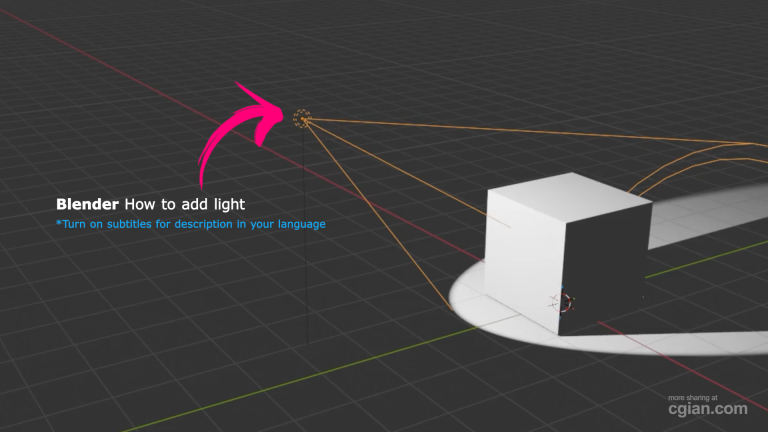
Lighting is arguably the most transformative step in the 3D workflow. If you are wondering how to add light to an object in Blender, follow these steps to start illuminating your work effectively:
- Prepare Your Scene: Start by adding a plane to act as your ground and a basic object like a cube. These provide the necessary surfaces for your lights to interact with, making it easier to judge your settings.
- Insert Your Lights: Navigate to the menu to add a light source. You can choose from point, sun, spot, or area lights, each of which will behave differently depending on your artistic goals.
- Activate Render Preview: Do not work in the dark. Press the “Z” key and switch to Render Preview mode to get instant, real-time feedback on how your light affects the scene.
- Refine Power and Direction: Open the Object Data Properties panel to dial in the intensity of your light. You can drag the power slider for quick adjustments or type in a precise numerical value for consistent results. To change the angle, simply click and drag the light in the viewport to point it exactly where you need it.
- Experiment with Types: You don’t need to delete your lights to try something new. Simply switch between different light types in the Object Data Properties tab to see how they instantly transform the mood of your render.
Watch YouTube Tutorial video here,
Frequently Asked Questions
Q: What is the fastest way to preview lighting changes? A: Press “Z” on your keyboard and select Render Preview. This allows you to see the impact of your light adjustments immediately without needing a full render.
Q: Does it matter which type of light I use? A: Absolutely. A point light radiates in all directions, while a spotlight focuses on a specific area, and a sun light creates parallel rays. Choosing the right one is key to achieving the look you want.
Q: Can I change the light’s brightness after placing it? A: Yes, you can go to the Object Data Properties panel at any time to adjust the power slider or input a new value to make the light brighter or dimmer.
Ready to see these techniques in action? Check out this step-by-step tutorial to master your lighting setup: https://youtu.be/sR53ouv1h6U?si=FpbUtlZdLQWgMOYU&t=50
by Blenderian
Related Post,
Mastering the Blender Principled BSDF Metallic Shader