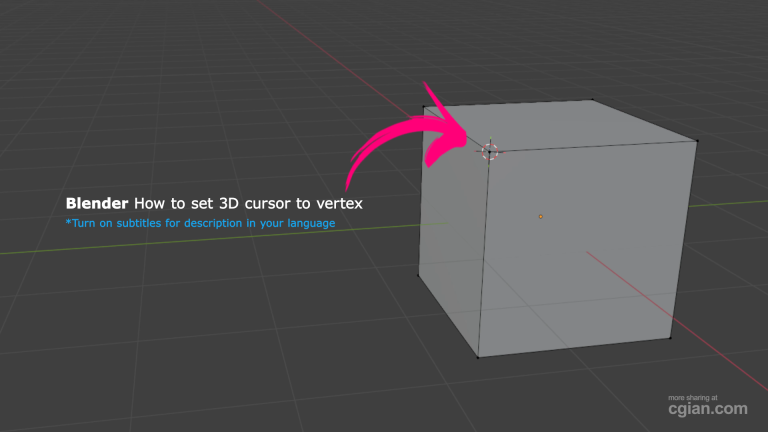
Master Precision Modeling: How to Set the 3D Cursor to a Vertex in Under 30 Seconds
Blender set 3D cursor to vertex is one of the most fundamental yet frequently overlooked skills that can dramatically transform your modeling workflow. If you’ve ever struggled with imprecise object placement, awkward pivot points, or frustrating transformations, mastering this single technique will instantly elevate your Blender game.
Why the 3D Cursor Matters More Than You Think
The 3D cursor in Blender isn’t just a decorative crosshair—it’s the command center for nearly every transformation, object insertion, and pivot operation you’ll perform. When you can precisely position this cursor on specific vertices, you unlock:
- Accurate object placement exactly where you need it
- Custom pivot points for rotations and scaling
- Seamless mesh editing with fewer errors
- Streamlined workflow that saves hours of manual adjustment
Yet surprisingly, many Blender users—even those with some experience—haven’t mastered the simple shortcut that makes this possible.
The Step-by-Step: How to Set 3D Cursor to Vertex
Here’s the straightforward process that will take you from confusion to confidence:
Step 1: Enter Edit Mode
With your mesh object selected, press Tab to switch from Object Mode to Edit Mode. This is essential because vertices are only selectable in Edit Mode.
Step 2: Select Vertex Selection Mode
Press 1 on your keyboard (or click the vertex icon in the viewport header) to enter Vertex Select mode. You’ll know you’re in the right mode when you see small dots appear on your mesh.
Step 3: Select Your Target Vertex
Left-click to select the specific vertex where you want the 3D cursor to land. The vertex should highlight in orange when selected.
Step 4: The Magic Shortcut
Press Shift + S to open the Snap menu, then select “Cursor to Selected” from the options. Alternatively, you can press Shift + S followed by 2 (if using the numeric shortcuts).
That’s it! Your 3D cursor will instantly snap to the exact position of the selected vertex.
Pro Tip: Visual Confirmation
After performing the snap, you can switch back to Object Mode (Tab) and observe the 3D cursor positioned precisely on your vertex. This visual confirmation is particularly helpful when you’re working with complex geometry and need absolute certainty about cursor placement.
Beyond the Basics: Additional Snapping Options
While “Cursor to Selected” is the star of the show, Blender’s Snap menu offers several other powerful options worth knowing:
| Snap Option | Use Case |
|---|---|
| Cursor to Selected | Place cursor on exact vertex position |
| Cursor to Center | Reset cursor to world origin |
| Cursor to Grid | Snap cursor to nearest grid point |
| Selection to Cursor | Move your selected geometry to the cursor position |
Each of these serves a unique purpose in your modeling workflow.
Why This Shortcut Is a Game-Changer
1. Precision Without Guesswork
Instead of eyeballing cursor placement with Shift + Right-click and adjusting repeatedly, this method guarantees sub-pixel accuracy.
2. Faster Workflow
Keyboard shortcuts dramatically reduce the time spent navigating menus. Once you build muscle memory for Shift + S, cursor placement becomes nearly instantaneous.
3. Foundation for Advanced Techniques
Mastering cursor snapping opens the door to more advanced operations:
- Pivot point customization for specific transformations
- Precise object instancing at exact locations
- Symmetrical modeling with mirrored pivots
- Clean topology maintenance during complex edits
Common Questions About Setting the 3D Cursor
Q: Why is it important to place the 3D cursor on a vertex?
The 3D cursor serves as the default origin for new objects, the pivot point for transformations, and a reference point for many modeling operations. Precise vertex placement ensures your operations start from exactly where you intend.
Q: Can I snap the 3D cursor to other mesh elements?
Absolutely! You can snap to edges, faces, or even individual points on curves. The same Shift + S menu offers options for snapping to these different element types.
Q: What if Shift + S doesn’t work on my system?
First, verify you’re in Edit Mode with a vertex selected. If the shortcut still fails, check your keymap preferences (Edit > Preferences > Keymap) to ensure the shortcut hasn’t been remapped.
Q: Does this work on objects other than the default cube?
Yes, this technique works identically on any mesh object in Blender—whether you’re working with a simple sphere, a complex character model, or architectural geometry.
Q: I’m in Object Mode. Can I snap the cursor to a vertex without entering Edit Mode?
Not directly. You must enter Edit Mode to select individual vertices. However, once you’re comfortable with the Tab + Shift + S combination, the process becomes second nature.
Putting It All Together
Mastering how to set the 3D cursor to a vertex transforms Blender from a powerful but sometimes frustrating tool into a precision instrument. This single skill enhances every aspect of 3D modeling, from basic object placement to complex architectural design and character creation.
Your Next Steps:
- Practice the shortcut with different objects and vertices until it becomes muscle memory
- Experiment with other snap options to understand the full power of the Snap menu
- Incorporate cursor snapping into your daily workflow for more efficient modeling sessions
Ready to See It in Action?
The written explanation is valuable, but seeing the technique performed in real-time makes all the difference. Watch this concise visual tutorial that demonstrates the exact process from start to finish:
👉 Watch the Blender 3D Cursor to Vertex Tutorial Here
This quick video guides you through entering Edit Mode, selecting vertices, and using the Shift + S shortcut effectively—all in under a minute.
Want more Blender tips and tutorials to accelerate your 3D modeling journey? Follow for weekly insights that help you work smarter, not harder.
by blenderian
Related Post,
Blender Select Ngons: The Fastest Way to Identify Problematic Faces
Blender how to extrude