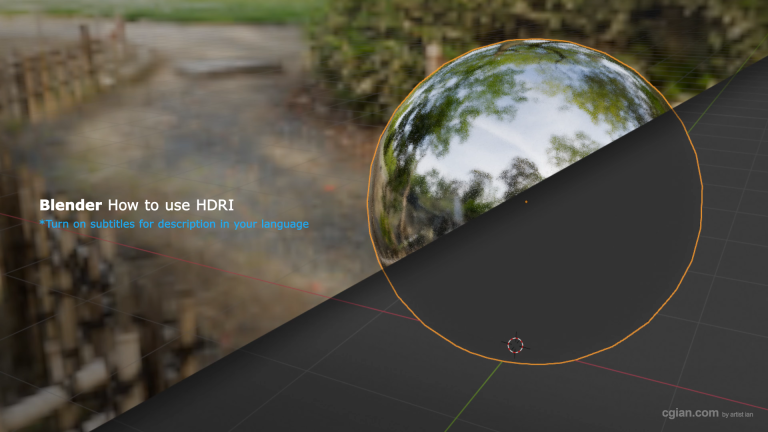
If you’ve been searching for how to add HDRI in Blender, you’ve probably seen tutorials that make it sound like magic. It’s not. It’s a straightforward process that transforms your lighting from flat and boring to rich and realistic. Let’s cut through the jargon and get it done.
What Exactly Is an HDRI and Why Should You Care?
An HDRI (High Dynamic Range Image) is a 360-degree panoramic photo that carries actual lighting information. When you add one to your Blender scene, it doesn’t just give you a pretty background—it casts realistic light, reflections, and shadows onto your objects. Think of it as dropping your 3D model into a real-world location.
Key point: Make sure you’re using a proper
.hdror.exrfile, not a regular JPEG. Standard images don’t carry the lighting data you need.
Step-by-Step: How to Add HDRI in Blender
Here’s the straightforward workflow, no fluff attached.
Step 1: Open the Shader Editor and Switch to World Nodes
In the Shader Editor, make sure you’re viewing the World nodes (not Object). If you don’t see anything, click the “Use Nodes” button. You should see a Background node connected to a World Output node.
Step 2: Add an Environment Texture Node
Press Shift + A (or click Add in the Shader Editor menu) and search for Environment Texture. Place this node somewhere near your Background node.
Step 3: Connect the Nodes
Connect the Color output of the Environment Texture node to the Color input of the Background node.
Step 4: Load Your HDRI File
Click the Open button on the Environment Texture node, navigate to your HDRI file, and select it.
That’s it. Your scene is now lit by the HDRI. Switch to Rendered viewport mode and watch the difference.
Watch steps visually here,
Fine-Tuning Your HDRI Lighting
Once you’ve added the HDRI, you can tweak a few things to get the look you want:
- Brightness: Adjust the Strength value on the Background node. Higher values = brighter lighting.
- Rotation: Add a Mapping node (Shift + A > Vector > Mapping) and connect it between the Environment Texture and the Background node. Rotate the Z axis to spin the HDRI around your scene.
- Render Engines: HDRI works in both Eevee and Cycles. Cycles will give you more accurate lighting, but Eevee handles it well for real-time previews.
Common Mistakes to Avoid
- Using the wrong file format. Stick to
.hdror.exr. JPEGs don’t carry lighting data. - Forgetting to switch to World nodes. If you’re in the Object shader editor, you won’t see the Background node you need.
- Not connecting the nodes properly. The Environment Texture must feed into the Background node’s Color input.
Frequently Asked Questions
Q: Where can I find free HDRI files?
A: Poly Haven is a great starting point with high-quality free HDRIs. Blender also includes some default HDRIs in its installation folder at .../datafiles/studiolights/world/.
Q: Does HDRI work with both Eevee and Cycles?
A: Yes. Both render engines support HDRI environment lighting.
Q: Can I rotate the HDRI to change the lighting angle?
A: Absolutely. Use a Mapping node to rotate the environment texture on the Z axis.
Q: My HDRI looks too bright or too dark—how do I fix it?
A: Adjust the Strength value on the Background node. Start with 1 and go up or down from there.
Final Thoughts
Adding an HDRI is one of the quickest ways to level up your renders. It replaces the need for complex manual lighting setups and gives you professional-looking results in seconds. Once you know how to add HDRI in Blender, you’ll wonder why you didn’t start using it sooner.
Want to See It in Action?
I’ve put together a quick video walkthrough that shows the entire process from start to finish. Watch it here: How to Add HDRI in Blender – Step-by-Step Tutorial
If this guide helped you, drop a comment on the video and let me know what you’re working on. Happy rendering!
by Blenderian
Related Posts,
How to Render Viewport Animation in Blender for Lightning-Fast Previews