Master object movement in Blender with these simple techniques that will transform your 3D workflow
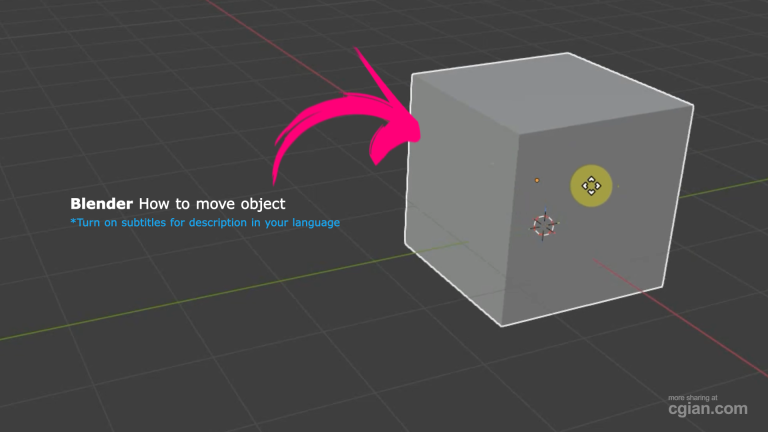
Learning how to move object in Blender is the first essential skill every 3D artist needs to master.
Whether you’re just starting your Blender journey or looking to speed up your workflow, understanding object movement is crucial for bringing your 3D creations to life. In this guide, I’ll walk you through three reliable methods that will give you complete control over object placement in your scenes.
Method 1: The Visual Gizmo Tool
The Gizmo tool offers the most intuitive way to move objects, especially when you’re new to Blender. Located in the left toolbar, this visual helper lets you drag objects along specific axes or planes.
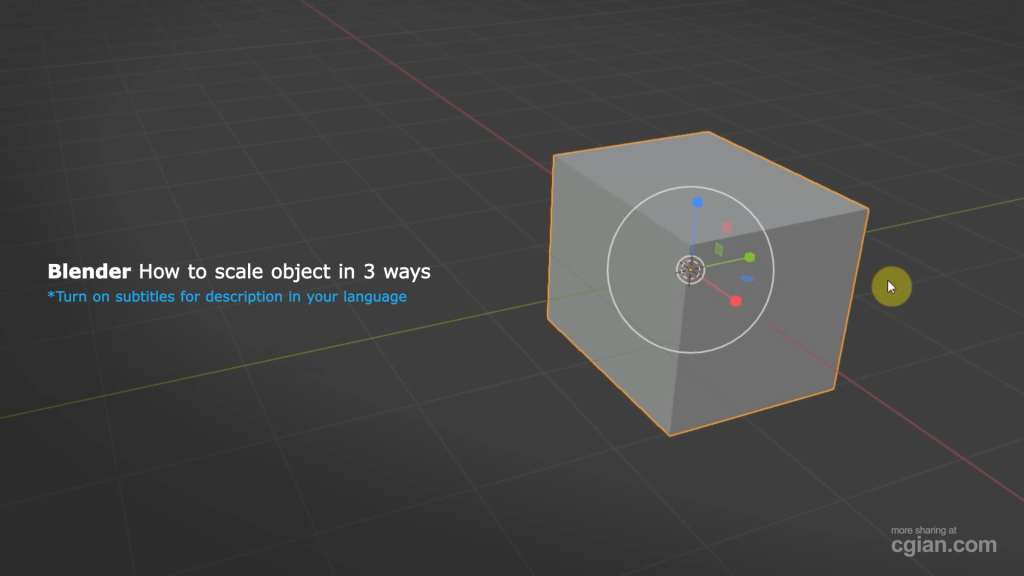
When you select an object, you’ll see colored arrows appear:
- Red arrow = X-axis movement
- Green arrow = Y-axis movement
- Blue arrow = Z-axis movement
For plane movement (moving along two axes at once), click and drag the colored squares where the arrows meet. This locks movement to the XY, YZ, or XZ planes, giving you precise control over which direction your object travels.
The Gizmo shines when you want to freely drag objects around your scene while maintaining visual feedback about which direction you’re moving.
Method 2: Precise Numeric Input
Sometimes dragging just isn’t accurate enough. For architectural models, mechanical parts, or any project requiring exact measurements, numeric input is your best friend.
You’ll find two primary places to enter exact values:
The Move Panel – Located at the bottom of your viewport, this panel displays transform values as you move objects. Simply type your desired numbers directly.
The Transform Panel – Press N to open the right sidebar, then locate the Transform section. Here you can:
- Type exact coordinates for object placement
- Drag the value fields for smooth adjustments
- Reset position to the origin by typing zero in all three fields
This method eliminates guesswork and ensures your objects land exactly where you need them, down to the decimal point.
Method 3: Keyboard Shortcuts (The Fastest Way)
Once you’re comfortable with Blender, keyboard shortcuts become your go-to for speed and efficiency. Here’s how the shortcut system works:
Basic Move:
- Select your object
- Press G (for “Grab”) to enter move mode
- Move your mouse to position the object
- Click to confirm or press Escape to cancel
Axis Locking:
- Press G, then immediately press X, Y, or Z to lock movement to that specific axis
- Your object will only move along that direction
Plane Locking (Advanced):
- Press G, then press Shift + X (or Y/Z) to lock the opposite axis
- For example, G + Shift + Z locks the Z-axis, allowing movement in the XY plane
Numeric Input with Shortcuts:
- Press G + X + 2 to move 2 units along the X-axis
- Press G + Z + -1.5 to move -1.5 units along the Z-axis
This combination of shortcuts and numeric entry creates a powerful workflow that will significantly speed up your modeling process.
Which Method Should You Use?
The beauty of Blender is having options. Here’s my recommendation based on your task:
- Rough placement or artistic adjustments → Use the Gizmo
- Precise measurements or engineering work → Use numeric input
- Fast, repetitive movements → Use keyboard shortcuts
- Complex projects → Combine all three as needed
Beginners should start with the Gizmo to develop spatial awareness, then gradually incorporate shortcuts as they become familiar with the interface. Intermediate users will find themselves switching between methods effortlessly based on the situation.
Common Questions About Moving Objects
Can I undo a move? Yes! Press Ctrl + Z to undo any movement.
What if I accidentally move the wrong object? Simply press Escape during the move operation to cancel it.
How do I move multiple objects together? Hold Shift and click to select multiple objects, then use any movement method above.
Why does my object snap to the grid? Press Ctrl while dragging to enable snap mode. Press Shift + Tab to open snap settings.
Ready to Master Blender?
These three movement methods form the foundation of your Blender workflow. The more you practice, the more natural they become.
Watch the full step-by-step video tutorial here:
👉 Complete Blender Object Movement Tutorial
The video demonstrates each technique in real-time, showing you exactly how to implement these methods in your own projects. It’s perfect for visual learners who want to see these techniques in action.
Putting It Into Practice
Here’s a simple exercise to build your skills:
- Create a new Blender project with a default cube
- Practice moving it using all three methods described above
- Add a second object and move them together
- Try moving one object exactly 3 units along the Y-axis using numeric input
- Use shortcuts to move a third object to a specific position
With just 10 minutes of daily practice, you’ll develop muscle memory for these essential movements, making your modeling work faster and more enjoyable.
Remember: Mastering object movement is your first step toward creating amazing 3D art. The techniques covered here will serve you throughout your entire Blender journey.
Watch the tutorial now and start moving objects like a pro:
Click here for the full video demonstration
Happy blending! 🚀
by blenderian
Related Posts,
How to Scale Object in Blender: A Beginner’s Guide
How to Blender Lock Object in Place