Quick tutorial shows how we can view normals and flip normals. There are 2 ways to find normals in Blender, one is using Face Orientation for both Object Mode and Edit Mode ; another is using Mesh Edit Mode. We will go through the steps how we can show normals and flip normals in Blender.
Blender how to view normals and flip normals
Blender View Normals in Edit Mode
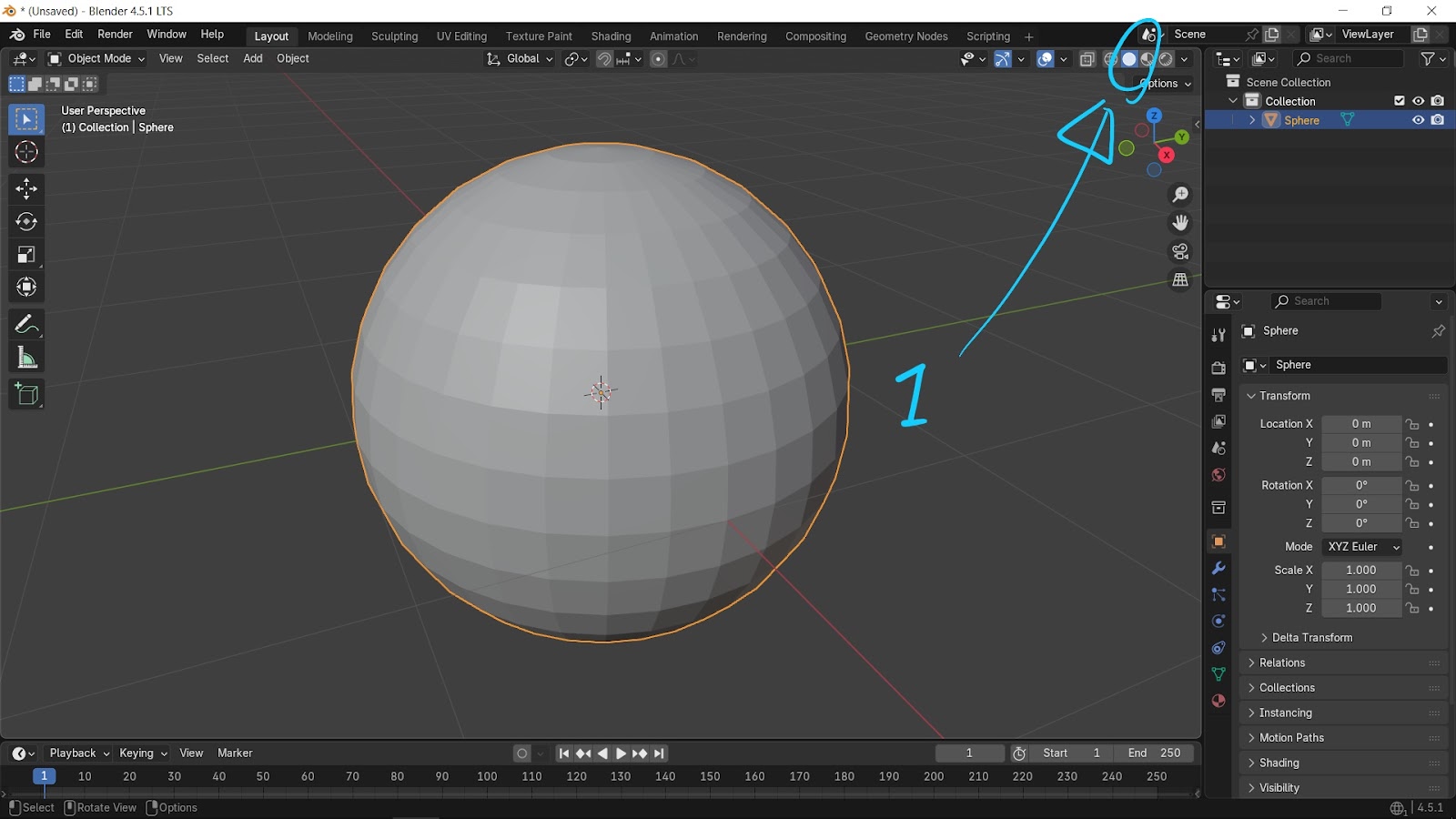
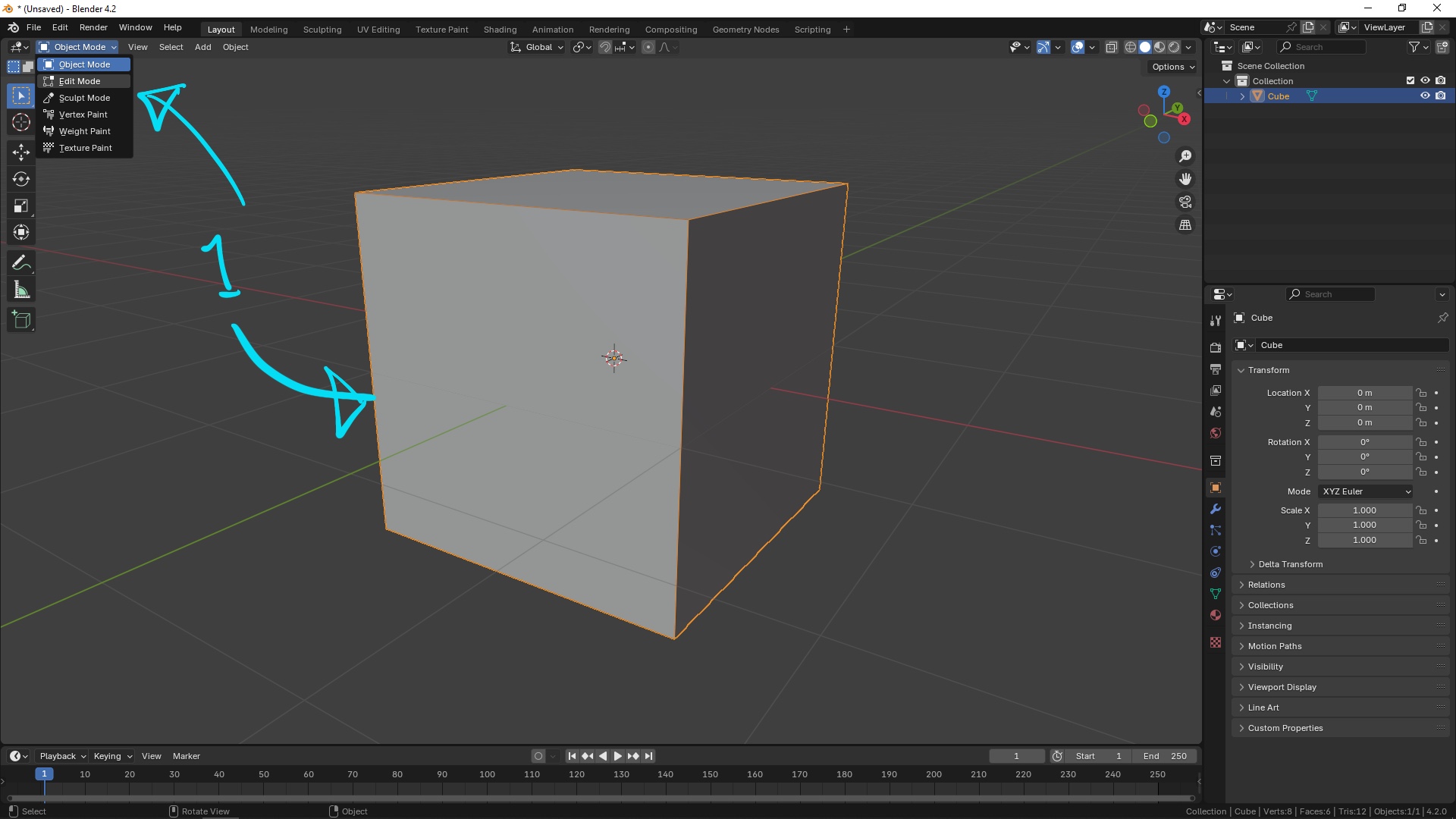
1. Select an object and go to Object Mode

2. Go to Mesh Edit Mode, we can Display Normals, Display Split Normals, and/or Display Vertex Normals

Blender View Normals in both Object Mode and Edit Mode
3. Alternative way, we can go to Viewport Overlays, we can check the box Face Orientation, then Blue or Red color is shown on the face. These Face Orientation colors are working for both Object Mode and Edit Mode.


5. Hit Shortcut Alt N or Go to Mesh > Normals > Flip

6. Then, the face normals is flipped, the color is turned from Blue to Red , and Normals Line is also flipped towards inside.

Watch YouTube Tutorial for flipping normals
#b3d #blender #cgian #blenderian
by cgian
Continues Reading :
Blender how to see triangle count
Blender how to see number of vertices
Welcome to share this post with your friend.