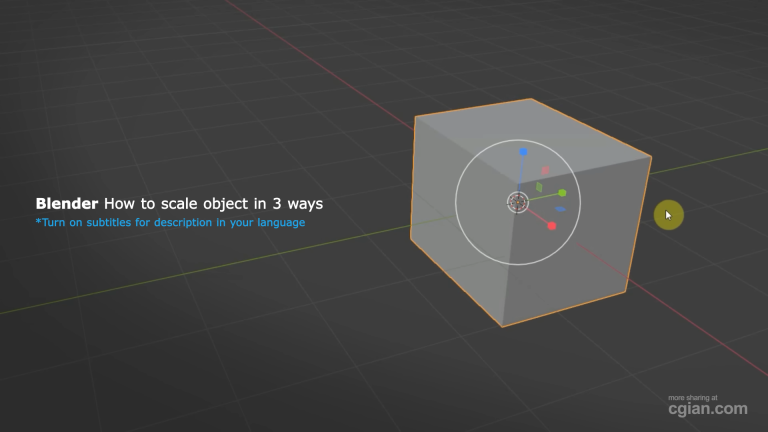
Are you struggling to get your 3D models the right size because you’re unsure how to blender scale object tools work? We have all been there—trying to drag an object and ending up with distorted proportions or skewed dimensions that ruin your hard work. Understanding blender how to scale object workflows is a fundamental skill that separates frustrating modeling sessions from productive ones. In this guide, I’ll walk you through the three most efficient methods to resize your objects precisely, ensuring your workflow stays clean and professional.
3 Methods to Scale Objects in Blender
Whether you prefer a visual approach or want to work at lightning speed with shortcuts, Blender has you covered.
1. Using the Toolbar Gizmo
This is the most visual way to scale, perfect for when you are just getting started and want to see exactly what is happening to your mesh.
- Select your object in the 3D Viewport.
- Click the Scale icon in the left-hand toolbar to display the transformation gizmo [00:21].
- Scale along a single axis: Click and drag the colored boxes (Red for X, Green for Y, Blue for Z) to stretch the object along that specific axis [00:28].
- Lock an axis: Click and drag the colored squares to lock one axis while scaling the other two simultaneously [00:44].
2. Mastering Keyboard Shortcuts
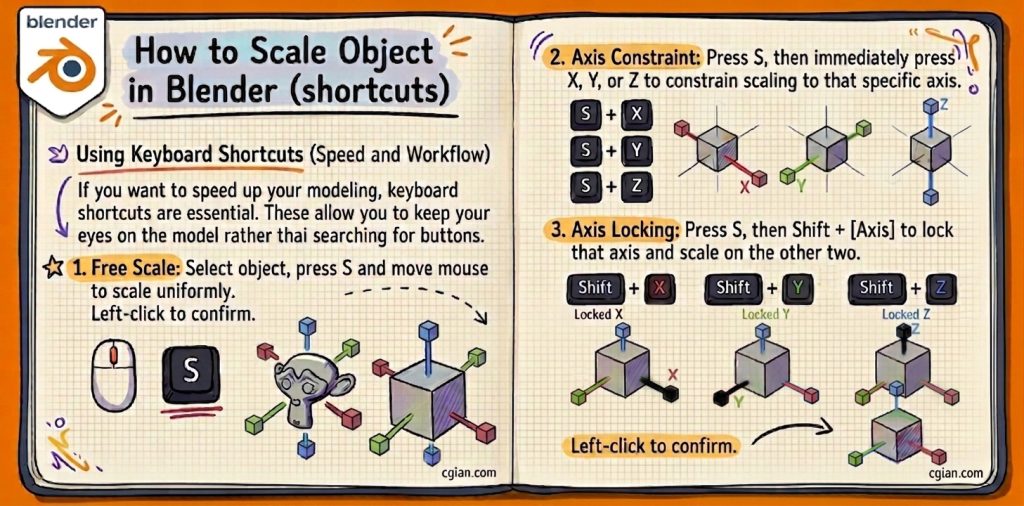
If you want to speed up your modeling, keyboard shortcuts are essential. These allow you to keep your eyes on the model rather than searching for buttons.
- Select your object and press S to begin the scale operation [01:13].
- Move your mouse to scale the object uniformly.
- Constrain to an axis: Immediately after pressing S, press X, Y, or Z to lock the scaling to that specific axis [01:21].
- Lock a specific axis: Press Shift followed by the axis key (e.g., Shift + Z) to lock that axis and scale the remaining two [01:35].
- Left-click to confirm your changes.
3. Using the Transform Panel (For Precision)
When accuracy is non-negotiable—such as in architectural or game asset modeling—the Transform Panel is your best friend.
- Press N on your keyboard to toggle the side panel, or click the small arrow on the right side of the viewport [02:03].
- Navigate to the Item tab to see your object’s Scale and Dimensions [02:12].
- Type your desired values directly into the input fields for perfect, mathematical precision.
- Pro Tip: After resizing, always remember to go to Object > Apply > Scale to reset your scale values back to 1. This prevents strange issues with modifiers or materials later in your project [02:39].
Watch the Tutorial
For a visual demonstration of these techniques, check out this guide: https://youtu.be/9_xdT2IcRLg
Frequently Asked Questions
- How do I scale an object uniformly in Blender? Simply press S and move your mouse without pressing any axis keys.
- What does “Apply Scale” do and why is it necessary? It resets the scale values to 1, 1, 1 while keeping the physical size of the object the same. This is critical because many modifiers (like Bevel or Solidify) will behave incorrectly if the scale is not applied.
- Can I enter exact values instead of dragging? Yes, always use the Transform Panel (N key) to input exact dimensions for technical accuracy.
Ready to level up your 3D skills?
Mastering these transformation basics is the first step toward becoming a proficient 3D artist. If you found this tutorial helpful, don’t forget to subscribe to the Blenderian channel for more practical tips to streamline your 3D workflow!
by blenderian
Related post,
How to Move Objects in Blender shortcuts: A Beginner’s Guide
Why Undo in Blender Is More Powerful Than You Think
original post, https://cgian.com/how-to-scale-object-in-blender/


I have fun with, result in I found exactly what I was looking for.
You’ve ended my four day lengthy hunt! God Bless you man. Have a nice day.
Bye
Thank you.