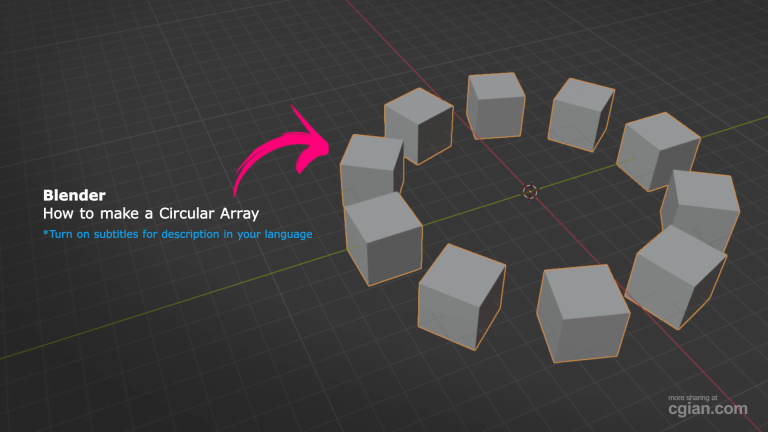
Blender 5’s circular array feature makes creating radial patterns faster and easier than ever
How to duplicate object around a circle in Blender is a question that has puzzled 3D artists for years – but with Blender 5’s redesigned Array modifier, the answer is finally simple. No more empty objects, no more complex Geometry Nodes setups, and no more hunting for add-ons. Just a few clicks and you have a perfect circular array.
What You’ll Learn
- ✅ How to use the new Circle mode in Blender 5’s Array modifier
- ✅ How to adjust radius, count, and axis for precise control
- ✅ How to create full circles or partial arcs with custom angles
- ✅ How to use rotation alignment and randomization for creative variation
Why This Is a Game-Changer
Before Blender 5, creating a circular array meant using workarounds: empty objects with object offsets, complex Geometry Node setups, or third-party add-ons. It was tedious, unintuitive, and often frustrating.
Blender 5 changes all of that. The new Array modifier is built on Geometry Nodes but presents a clean, user‑friendly interface. It now includes Circle and Curve shape options, making circular arrays a native, one‑click feature. As one Blender artist put it: “Finally a new and improved array modifier out of the box, no more hunting for x or y add‑on just for a circular array.”
Step‑by‑Step: How to Duplicate an Object Around a Circle
1. Select Your Object and Add the Array Modifier
Start by selecting the object you want to duplicate. In the Modifier Properties panel, click Add Modifier and choose Array.
2. Switch to Circle Mode
By default, the Array modifier arranges objects in a straight line. To change this, look for the Shape or Array Method dropdown and select Circle.
💡 Pro Tip: In Blender 5, you can also choose between Line, Circle, Curve, and Transform modes – giving you incredible flexibility.
3. Adjust the Radius
Once you’re in Circle mode, you’ll see a Radius control. You can adjust it in two ways:
- Drag the radius gizmo directly in the viewport for interactive control
- Type a precise value in the modifier panel
The radius determines how far your duplicated objects sit from the center point.
4. Set the Number of Copies (Count)
Use the Count slider or type a number to specify how many copies you want around the circle. Want 8 objects? Set Count to 8. Need 24 for a gear? Type 24.
5. Choose the Axis
Decide which axis the circle should rotate around – X, Y, or Z. This is crucial for orienting your array correctly in 3D space. For a horizontal ring on the ground plane, choose Z. For a vertical wheel, choose X or Y.
6. Full Circle or Partial Arc?
Here’s where things get really flexible. You can choose between:
- Full Circle – a complete 360° array
- Arc – a partial circle where you control the angle (e.g., 180° for a half‑circle, 90° for a quarter)
This is perfect for creating arches, staircases, or any partial radial pattern.
7. Rotation Alignment (Optional)
Toggle Align Rotation to make each duplicated object follow the circular path. This means each copy will rotate to face outward from the center – ideal for mechanical parts, petals, or anything that needs to point radially.
If you prefer all copies to keep their original orientation, simply turn this option off.
8. Add Randomness (Optional)
For more organic or varied patterns, Blender 5’s Array modifier includes randomization controls. You can randomize the location, rotation, or scale of each copy – great for natural-looking distributions like stones around a campfire or leaves around a stem.
Practical Applications
Once you know how to duplicate object around a circle in Blender, a world of modeling possibilities opens up:
| Application | Example |
|---|---|
| 🎡 Mechanical parts | Gears, wheels, fans, propellers |
| 🏛️ Architecture | Columns around a rotunda, dome ribs |
| 🌿 Organic modeling | Flower petals, leaf arrangements |
| 🎨 Decorative patterns | Jewelry, mandalas, radial ornaments |
| 🏎️ Vehicle design | Wheel spokes, tire treads |
| 🎮 Game assets | Circular platforms, arenas |
Key Insights from the Pros
- The circular array is a native feature in Blender 5 – no add‑ons, no workarounds.
- Radius, count, and axis give you full control over the array’s size, density, and orientation.
- Arc mode lets you create partial circles – perfect for arches and segmented designs.
- Rotation alignment dramatically improves visual coherence, especially in mechanical or patterned designs.
- Randomization adds organic variety while keeping the circular structure intact.
Frequently Asked Questions
Q: Is the circular array feature available in Blender versions earlier than 5?
A: No. The circular array is a new feature introduced specifically in Blender 5. In older versions, you’d need workarounds like empty objects or Geometry Nodes.
Q: How do I adjust the spacing between objects in a circular array?
A: Change the Radius value – a larger radius spreads objects further apart, while a smaller radius brings them closer together.
Q: Can I create only part of a circle instead of a full 360° array?
A: Yes! Switch to Arc mode and adjust the arc angle to create partial circular arrays – 180°, 90°, or any custom value.
Q: How do I change the number of items in my circular array?
A: Increase or decrease the Count value by typing a number or dragging the slider in the modifier settings.
Q: What does the “Align Rotation” option do?
A: It orients each duplicated object to follow the circular path, making objects face outward along the circle.
Q: Can I randomize the objects in my circular array?
A: Yes! Blender 5’s Array modifier includes randomization controls for location, rotation, and scale.
Final Thoughts
This tutorial has shown you exactly how to duplicate object around a circle in Blender using the new Array modifier in Blender 5. By demonstrating how to manipulate radius, count, axis, arc segments, and rotation alignment, it empowers you to build complex circular patterns quickly – adding efficiency and creativity to your modeling process.
The best part? What used to take multiple steps and workarounds now takes just a few clicks. Whether you’re modeling wheels, gears, architectural details, or decorative elements, this feature will save you time and frustration.
Want to See It in Action?
Theory is great, but nothing beats watching the process live. That’s why I highly recommend checking out the full video tutorial by CG Ian – it’s short, clear, and shows every step in real time.
🎬 Watch the full tutorial here:
👉 How to Duplicate Object Around a Circle in Blender – CG Ian
The video covers the entire workflow in under two minutes, making it perfect for visual learners. Plus, CG Ian regularly shares more Blender tips and tricks, so subscribing to the channel is a great way to level up your 3D skills.
Did this guide help you? Drop a comment below and let me know how it went. And if you found this useful, share it with a fellow Blender artist who’s still struggling with circular arrays!
by blenderian
Related Post,
How to Move Object in Blender: 3 Fast Methods for Beginners
Why Undo in Blender Is More Powerful Than You Think
Blender Select Ngons: The Fastest Way to Identify Problematic Faces