Stop struggling with low-poly models. Here’s how to add mesh in Blender the right way.
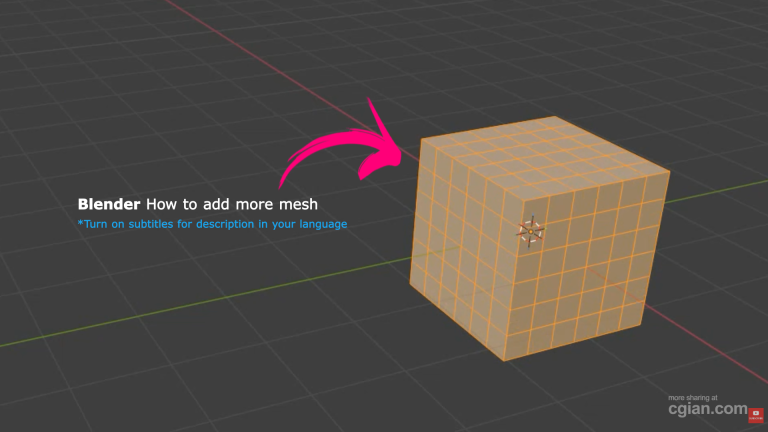
If you’ve ever asked yourself how to add mesh in Blender beyond just extruding and scaling, you’re not alone. Adding geometry is one of those fundamental skills that separates frustrating modeling sessions from smooth, enjoyable ones. Whether you’re refining a character’s face or adding detail to a hard-surface prop, knowing how to increase mesh resolution gives you control over your final result.
Here’s the thing: Blender gives you multiple ways to add mesh, and each one serves a different purpose. Use the wrong one, and you’ll spend extra time cleaning up topology. Use the right one, and your workflow becomes faster and more intuitive.
Let’s break down three practical methods you can start using today.
Method 1: Subdivide for Uniform Mesh Density
The Subdivide operation is your go-to when you need to increase geometry evenly across your entire model or on specific faces. It’s quick, it’s clean, and it gets the job done.
How to do it:
- Enter Edit Mode (Tab key)
- Select the faces you want to refine (or press A to select all)
- Right-click and choose Subdivide
- Adjust the number of cuts in the operator panel that appears
Subdividing all faces gives you a uniform increase in mesh density—perfect for when you need more geometry to work with but don’t have a specific direction in mind yet.
Pro tip: You don’t have to subdivide everything. Select a single face, right-click, and Subdivide. Only that face gets extra geometry. This is incredibly useful when you need detail in one area without bloating your entire model with unnecessary polygons
Method 2: Loop Cuts for Precision and Control
Loop cuts are where things get interesting. Instead of adding geometry everywhere, loop cuts let you place new edge loops exactly where you want them—and slide them into position.
How to do it:
- In Edit Mode, press Ctrl + R
- Hover over your model to see a preview of where the loop cut will appear
- Click once to confirm the placement
- Drag to slide the loop into its final position
The loop cut tool is ideal for adding supporting edges around details, creating better edge flow for subdivision surfaces, or simply giving yourself more geometry to work with in a controlled area.
What makes loop cuts particularly powerful is the sliding interaction. After placing a loop, you can drag it to fine-tune its position—essential for getting clean topology that deforms well or holds sharp edges properly.
Method 3: The Knife Tool for Custom Cuts
Sometimes you need geometry that follows a specific path—something neither Subdivide nor loop cuts can handle. That’s when you reach for the Knife tool.
How to do it:
- In Edit Mode, press K to activate the Knife tool
- Click to create vertices, and drag to draw cuts across faces
- Press Enter to confirm your cut
The Knife tool gives you complete freedom to add mesh in any pattern you can imagine. It’s especially valuable for organic modeling, hard-surface detailing, or any situation where you need non-linear edge placement.
The tutorial mentions a separate video dedicated entirely to the Knife tool, which suggests there’s plenty more to explore once you’ve got the basics down.
Which Method Should You Use?
| Situation | Recommended Tool |
|---|---|
| Need more geometry everywhere | Subdivide (all faces) |
| Need detail in one specific area | Subdivide (selected face) |
| Adding supporting edges for subdivision | Loop Cut |
| Creating custom edge flows | Knife Tool |
| Organic or complex shapes | Knife Tool |
Mastering all three gives you flexibility. Subdivide handles the broad strokes, loop cuts give you precision, and the knife tool covers everything else.
Putting It All Together
Adding mesh in Blender isn’t about memorizing one technique—it’s about knowing which tool fits the situation. Start with Subdivide when you need uniform density. Use Loop Cuts when you want control over placement. And when you need something custom, reach for the Knife tool.
The best way to learn? Open Blender, grab a cube, and try each method. Subdivide everything. Then subdivide just one face. Add some loop cuts. Draw a few knife cuts. See how each one affects your geometry.
Modeling gets a lot more enjoyable when you’re not fighting your tools.
Want to See It in Action?
Sometimes watching someone work through these techniques is more valuable than reading about them. If you prefer a visual walkthrough, check out this tutorial that demonstrates all three methods step by step:
👉 Watch the full tutorial here
The video shows exactly how each tool behaves in real-time, with clear explanations and practical examples you can follow along with.
by blenderian
Related Posts,
Blender how to add sphere
Why Undo in Blender Is More Powerful Than You Think