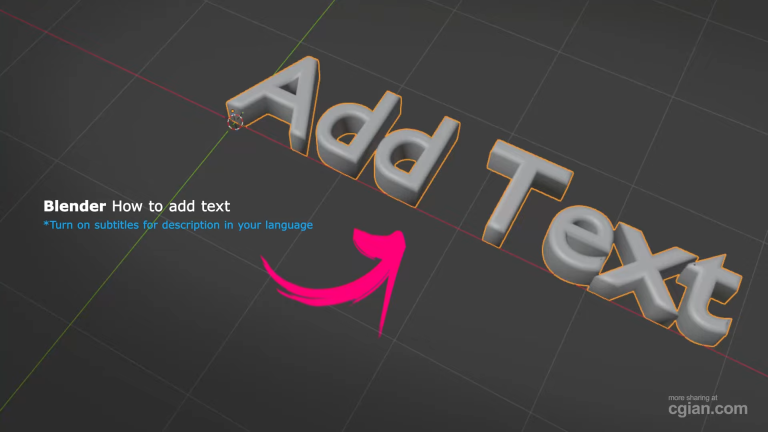
Learning blender how to add text is one of the first skills you’ll want to pick up when working with 3D graphics. Whether you’re creating titles for animations, designing 3D logos, or adding labels to your models, text in Blender opens up plenty of creative possibilities.
A Step-by-Step Guide on Blender How to Add Text
Here’s the straightforward process for getting text into your Blender scene and making it look good.
Step 1: Insert Your Text Object
Open Blender and press Shift + A to bring up the add menu. Navigate to “Text” under the “Add” tab. You’ll see a default “Text” object appear in your scene.
Step 2: Edit the Content
With the text selected, press Tab to enter Edit Mode. The default text will be highlighted – just start typing to replace it with your own words. Press Tab again to return to Object Mode when you’re done.
Step 3: Give It Some Depth
Your text will look flat by default. To make it 3D, head over to the Object Data Properties panel (the “a” icon). Look for the Geometry section and adjust the Extrude setting. This adds thickness to your text. Start with a value around 0.05 and tweak from there.
Step 4: Smooth Out the Edges
Flat, sharp edges don’t look great in 3D. Under the same Geometry section, find the Bevel settings. Enable it and adjust the Depth to round off those edges. The Round option gives you a smoother finish.
Step 5: Tweak the Thickness
If your text looks too chunky, use the Offset setting to fine-tune the overall thickness. It helps you find that sweet spot between flat and bulky.
Step 6: Convert to Mesh (Optional)
Once you’re happy with the look, you can right-click and select “Convert to Mesh.” This turns your text into editable geometry, letting you sculpt, deform, or modify individual vertices for custom shapes.
What You’ll Learn from This Tutorial
- Inserting and editing text – The basic workflow for adding text to your scene
- Adding 3D thickness – Using extrude and offset to give text real depth
- Creating smooth edges – Applying bevel settings for professional-looking results
- Converting to mesh – Unlocking advanced editing capabilities for custom designs
Quick Tips for Better Text in Blender
- Font selection matters – Blender lets you load external fonts. Choose something that fits your project’s style.
- Use the Offset carefully – It’s easy to make text too thick. Small adjustments go a long way.
- Bevel depth controls sharpness – Keep it subtle unless you’re going for a specific effect.
- Convert to mesh early – If you plan to do complex edits, convert sooner rather than later.
Frequently Asked Questions
Can I use my own fonts in Blender?
Yes. In the Object Data Properties panel, you’ll find options to load external font files.
Why can’t I edit my text after converting to mesh?
Converting to mesh turns text into regular geometry. You can’t edit the text content anymore, but you gain full control over vertices and faces.
What’s the best extrude value for 3D text?
It depends on your scene scale. Start with 0.05 and adjust until it looks right.
Can I animate text in Blender?
Absolutely. You can animate text content, position, rotation, scale, and even individual characters.
Putting It Into Practice
The best way to get comfortable with Blender’s text tools is to experiment. Try creating a simple title for a personal project, or design a 3D logo. The more you use these features, the more natural they’ll feel.
Watch the full tutorial here: Blender How to Add Text – Complete Guide
Text in Blender is more than just typing words – it’s about creating 3D elements that enhance your projects. Start with the basics, play around with the settings, and you’ll be crafting professional-looking typography in no time.
by blenderian
Related Post,
How to Duplicate Object Around a Circle in Blender (New Array Modifier)