Learning how to undo in Blender is the first skill every 3D artist should master. Whether you’re a beginner just starting out or an intermediate user looking to streamline your workflow, understanding Blender’s undo system can save you hours of frustration and help you work with more confidence.
How to Undo in Blender: Beyond Ctrl+Z
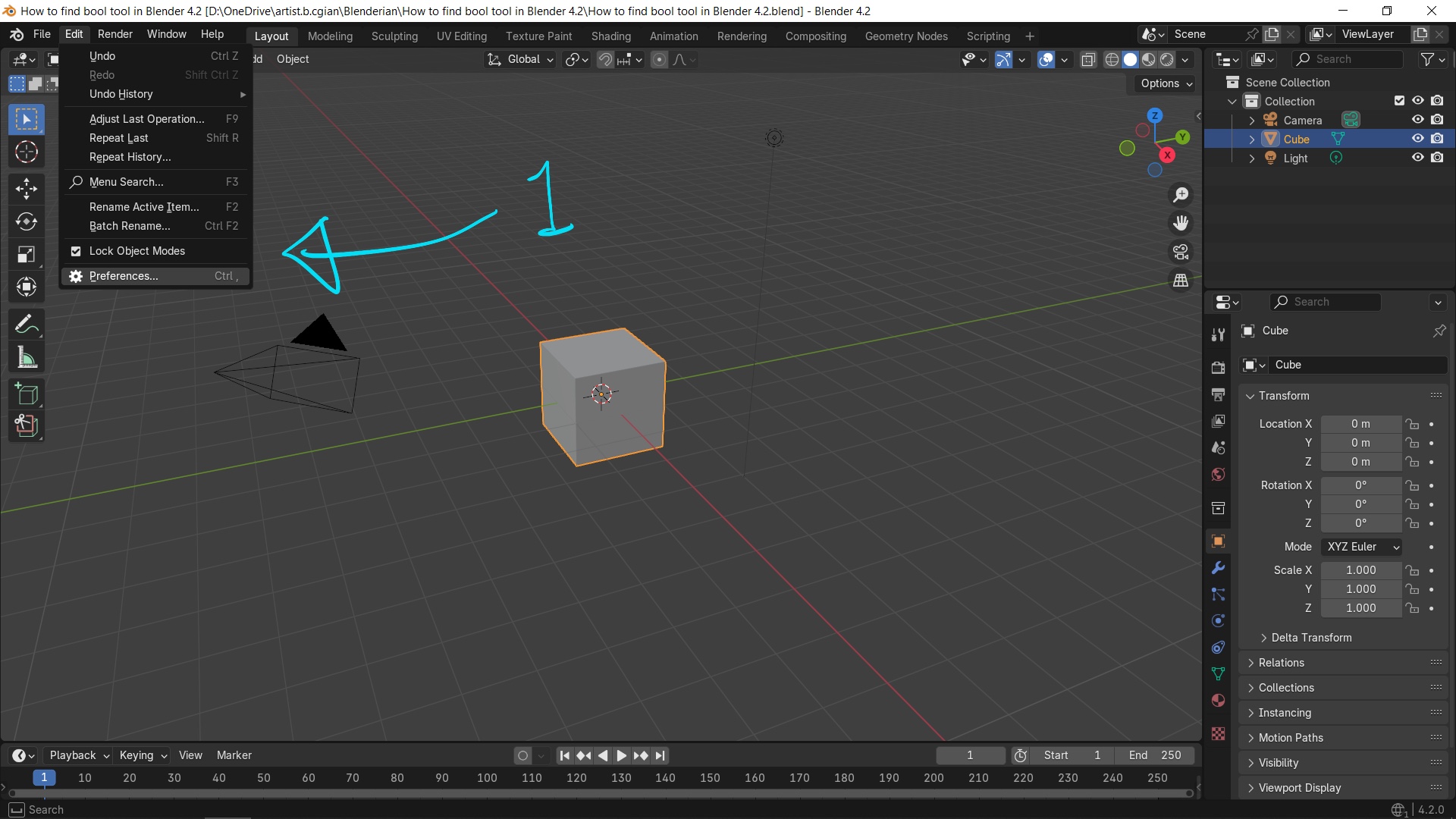
The most basic way to undo in Blender is using Ctrl+Z or navigating to Edit > Undo from the top menu. This reverses your last action, whether you were scaling, rotating, or moving objects in your scene. But Blender offers much more than a simple one-step undo.
Accessing Undo History for Better Control
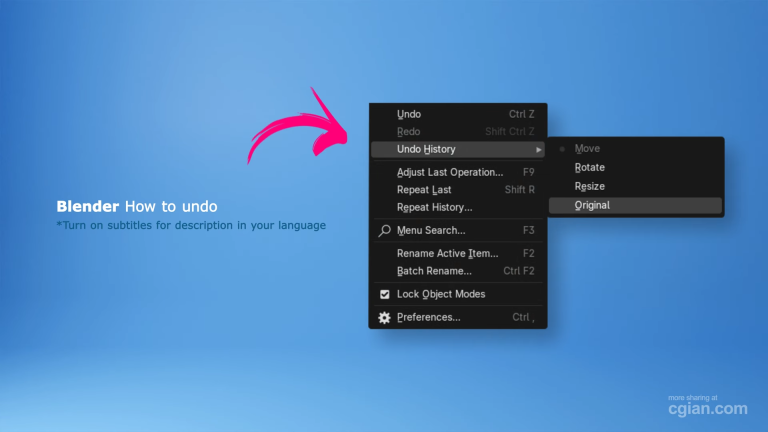
One of the most powerful features for undoing in Blender is the Undo History. You can find this under Edit > Undo History, which displays a list of all your recent actions. Instead of repeatedly pressing Ctrl+Z to step backward, you can select any previous state from the list and jump directly to that point in your workflow.
This is incredibly useful when you’ve made several changes and realize you need to go back to a specific moment, not just the last step. The visual history helps you track your editing process and recover from mistakes more efficiently.
Customizing Undo Settings for Your Workflow
Blender allows you to fine-tune how undo works through the Preferences panel. Navigate to Edit > Preferences > System to find undo settings that can dramatically improve your experience:
- Undo Steps: Controls how many actions Blender remembers. The default is 32, but you can increase or decrease this based on your needs.
- Undo Memory Limit: Sets how much RAM Blender can use for storing undo data. For complex scenes, you might need to increase this limit.
Adjusting these settings helps balance performance with undo capability. If you’re working on large projects with high-poly models, you might want more memory allocated to undo operations. For simpler projects, reducing these settings can improve overall performance.
Advanced Undo Tips
Beyond the basics, here are some pro tips for undoing in Blender:
- Redo: If you undo too far, use Ctrl+Shift+Z or Edit > Redo to step forward again.
- Keyboard Shortcuts: Memorize these essential shortcuts for faster workflow.
- Undo in Different Modes: Undo works across all Blender modes, including Edit Mode, Sculpt Mode, and Object Mode.
Common Mistakes and How to Avoid Them
Many users don’t realize they can customize undo settings until they run into performance issues. If Blender feels sluggish, try reducing the number of undo steps. Conversely, if you find yourself losing work because Blender forgets old actions, increase the limit.
Another common mistake is forgetting about the Undo History feature. Instead of pressing Ctrl+Z repeatedly and potentially overshooting your target, use the history to jump exactly where you need to go.
Why Mastering Undo Matters
Efficient undoing in Blender transforms how you work. You’ll feel more confident experimenting with complex transformations, knowing you can easily revert changes. This freedom encourages creativity and helps you learn faster because you’re not afraid to try new techniques.
For beginners, mastering undo builds a solid foundation. For professionals, it’s about optimizing workflow and minimizing downtime from mistakes.
Ready to Dive Deeper?
If you want to see these techniques in action, check out this excellent video tutorial by CG Ian. He demonstrates the entire process using Blender’s default scene, showing you exactly how to use undo, access history, and customize settings for your workflow.
Watch the full tutorial here: CG Ian’s Blender Undo Tutorial
The video covers everything from basic shortcuts to advanced settings in under two minutes, making it perfect for quick reference or learning alongside your Blender projects. CG Ian’s clear demonstrations help you understand not just the “how” but also the “why” behind each undo method.
Start implementing these undo techniques today, and you’ll notice an immediate improvement in your Blender workflow. Whether you’re modeling, sculpting, or animating, knowing how to undo effectively is your safety net for creative exploration.
by blenderian
Related post,
How to Blender Lock Object in Place