Learning how to make an object follow a bezier curve in Blender is one of the most useful animation skills you can pick up, and it’s surprisingly straightforward once you know the workflow.
What You’ll Learn Today
This guide walks through the exact process CG Ian demonstrates in his tutorial—taking you from a blank scene to a fully animated object cruising along a custom path. No fluff, just the steps that work.
Step 1: Set Up Your Curve
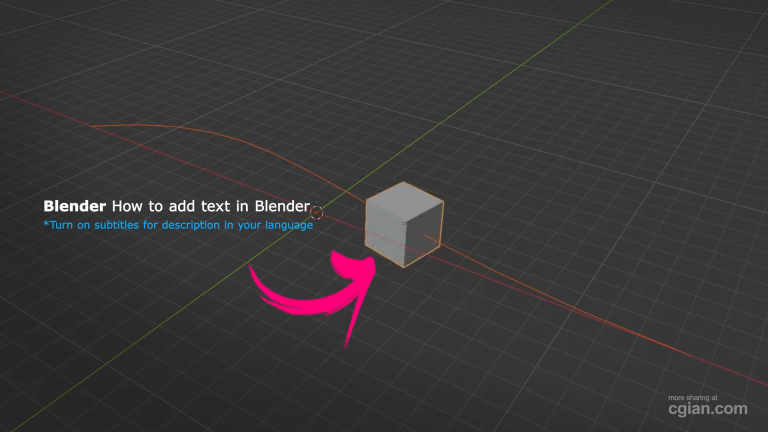
Start with a clean Blender scene. Go to Add > Curve > Bezier to drop in your path. This isn’t just any line—it’s the route your object will follow.
Pro tip: Tab into Edit Mode and grab those control points. Pull them around, scale them, shape the curve however you want. The more interesting the path, the better the final animation looks.
Step 2: Add Your Object
Drop in whatever you want to animate. A cube works fine for testing, but you can use anything—a car, a camera, a spaceship. The process is exactly the same.
Select your object, then head to the Object Constraints panel (the little chain link icon). Click Add Constraint and choose Follow Path.
Here’s the key move: use the dropper tool to select your bezier curve as the target. Your object instantly snaps to the start of the path.
Step 3: Animate the Motion
This is where the magic happens. Set your timeline to frame 1. In the constraint settings, find the Offset value. Right-click it and insert a keyframe (or just hit “I” with your mouse over the field).
Now jump to frame 100. Change the Offset to whatever value moves your object to the end of the curve. Insert another keyframe.
Hit play and watch it slide along the path. That’s your basic animation done.
Step 4: Fix the Orientation
Chances are your object is sliding along but facing the wrong direction. Turn on the Follow Curve checkbox in the constraint settings.
Now your object rotates to match the curve’s direction as it moves. Around corners, over hills—it all looks natural. This one setting separates amateur animations from polished ones.
What Makes This Work
The Follow Path constraint is doing all the heavy lifting. Instead of manually positioning your object frame by frame (which would take forever), you’re just controlling one number—the Offset—and letting Blender handle the rest.
The best part? You can go back and edit the curve anytime. Your object updates automatically. This makes iteration fast and painless.
Common Questions
Can I change the speed along the curve?
Absolutely. Adjust the Offset keyframes or edit the curve’s F-Curve in the Graph Editor for custom acceleration and deceleration.
What if my object faces the wrong way?
Toggle the Influence or adjust the rotation offset in the constraint settings. Sometimes you just need to rotate your object 180 degrees.
Does this work with imported curves?
Yes. Any curve object works—imported SVGs, extruded paths, you name it.
Where to Go From Here
Path animations open up a ton of possibilities. Camera flythroughs, vehicle animations, particle trails—once you know how to make an object follow a bezier curve in Blender, you start seeing applications everywhere.
The technique scales too. Stack multiple constraints, combine it with other animations, or parent objects to your follower for complex setups.
See It in Action
Sometimes watching someone do it makes all the difference. CG Ian’s tutorial shows every click and keystroke:
Watch the full tutorial here: How to Make an Object Follow a Bezier Curve in Blender
The timestamp drops you right at the start of the curve setup, so you can follow along without any wasted time.
Your turn: Open Blender, drop in a curve and an object, and run through these steps. Twenty minutes from now, you’ll have a working path animation—and one more solid tool in your 3D toolkit.
by blenderian
Related Posts,
How to Add Vertex to Curve in Blender: A Quick Guide
How to Select Entire Edge Loop in Blender


Hey, Ian!
Thanks for all of your videos, I keep finding them and they’re dxxx helpful.
All the best!
Thank you Keey.