Master the difference between splitting and separating in Blender with this step-by-step tutorial
If you’ve ever wondered Blender How to Split Object into Two, you’re in the right place. This essential technique is one of the first skills any 3D modeler needs to master, and today you’ll learn exactly how to do it.
Why Split Objects in Blender?
Whether you’re designing a character, creating architectural models, or building game assets, knowing how to divide a single mesh into separate parts is crucial. Maybe you need to break a model into manageable sections, prepare parts for animation, or simply reorganize your workflow. Whatever your reason, Blender offers powerful tools to get the job done.
The Two Methods: Split vs. Separate
Before diving in, it’s important to understand that Blender has two different ways to divide geometry, and they serve different purposes .
Method 1: Split (Y Key)
The Split function disconnects selected geometry but keeps everything within the same object . This is useful when you want to move parts independently while still treating them as one object in your outliner.
How to split:
- Enter Edit Mode (Tab key)
- Select the faces you want to split
- Press Y or right-click and choose “Split”
After splitting, you can move selected faces independently, but they remain part of the same object.
Method 2: Separate (P Key)
The Separate function creates entirely new objects from your selection . This is what you typically want when you need to split an object into two separate pieces.
How to separate:
- Enter Edit Mode (Tab key)
- Select the geometry you want to separate
- Press P to open the Separate menu
- Choose your separation method:
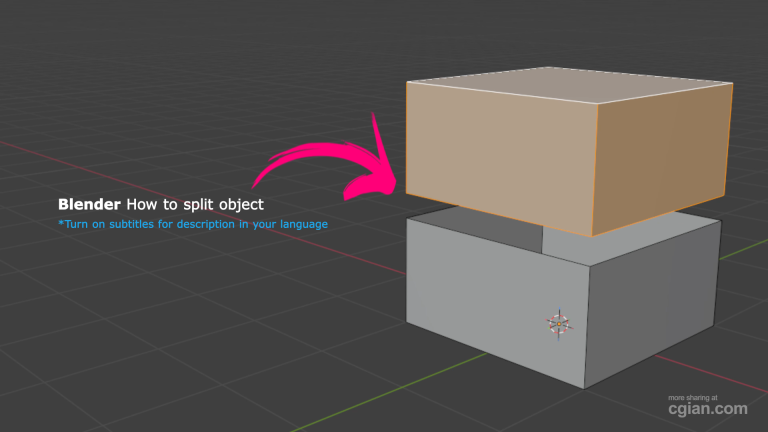
Step-by-Step: Split a Cube Into Two
Let’s walk through a practical example using a simple cube:
- Add a Cube: Start with a default cube in your scene
- Enter Edit Mode: Press Tab to switch from Object Mode
- Add Loop Cuts: Use loop cuts to define where you want to split
- Select Faces: Switch to face selection mode and select the faces on one side
- Press P: Open the separate menu and choose “Selection”
- Confirm: The selected faces become a new object
You’ll now see two separate objects in your outliner that you can move, scale, and edit independently .
Pro Tips for Clean Splits
- Use Snapping: Hold Ctrl while adding loop cuts for precise positioning
- Check Your Selection: Before pressing P, ensure you’ve selected exactly what you want to separate
- Use Linked Selection: Press L while hovering over a part to select all connected geometry quickly
Common Questions Answered
What’s the keyboard shortcut to separate objects?
Press P in Edit Mode to open the separate menu .
Can I split without adding new edges?
No, splitting requires defined edges or faces to know where to divide the mesh .
Why isn’t my split working?
Make sure you’re in Edit Mode—the separate command isn’t available in Object Mode .
Watch It in Action
Want to see these techniques demonstrated visually? Check out this practical tutorial that walks you through splitting a cube step by step, from adding loop cuts to separating into two distinct objects.
Next Steps
Now that you know how to split objects in Blender, practice on different shapes and experiment with both the Split (Y) and Separate (P) functions. Understanding these tools will dramatically improve your modeling workflow and open up new creative possibilities.
Found this helpful? Share it with another Blender artist who’s just getting started!
by blenderian
Related Posts,
How to rotate object in Blender