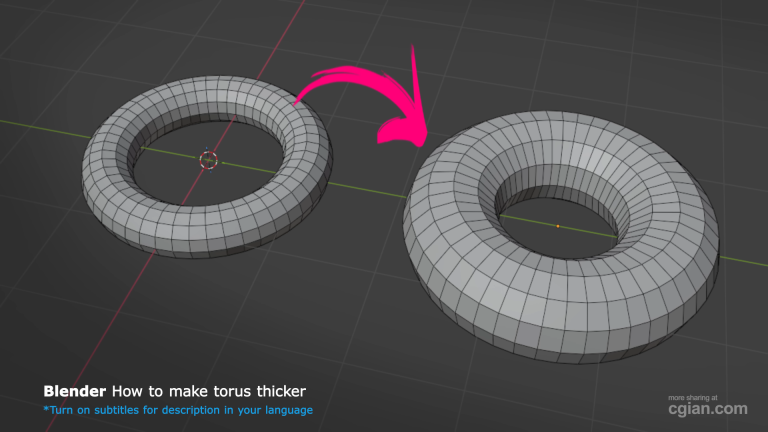
Creating a torus (donut shape) in Blender is a common starting point for many 3D modeling projects. However, a frequent question among beginner and intermediate 3D artists is: How do you adjust or increase the thickness of a torus after adding it?
Whether you are just adding a new torus or want to make an existing torus thicker later in your workflow, Blender offers two straightforward ways to accomplish this.
In this guide, we’ll walk you through both methods step-by-step.
Method 1: Using the “Add Torus” Operator Panel (Before Applying)
When you first create a torus mesh, Blender allows you to adjust its major and minor radii directly from the initial operator panel.
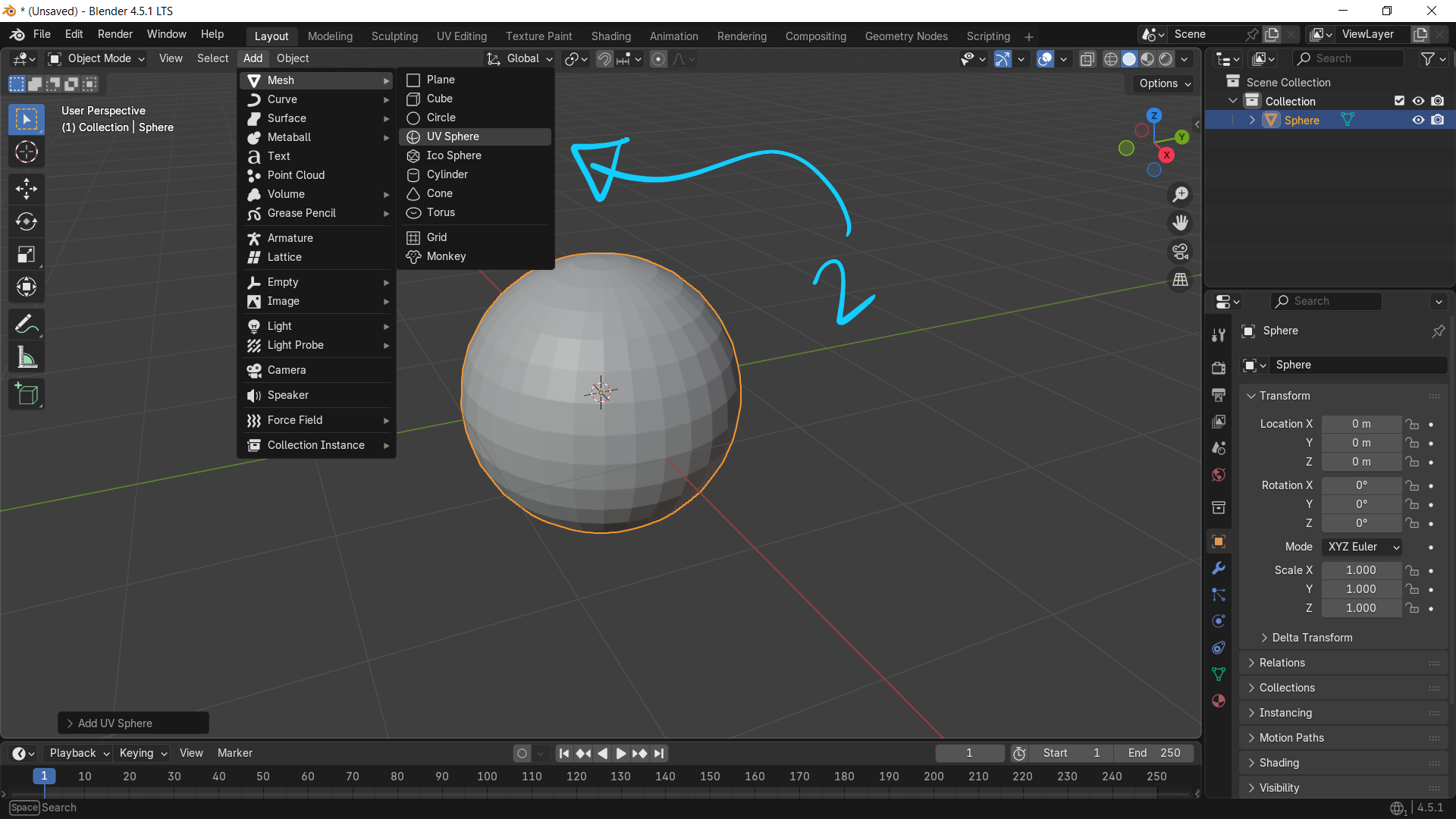
- Add a Torus: Press
Shift + A> Mesh > Torus. - Open the Operator Panel: Immediately look at the bottom-left corner of your 3D Viewport and expand the Add Torus popup menu.
- Adjust the Major & Minor Radius:
- Major Radius: Controls the overall outer diameter of the ring.
- Minor Radius: Controls the thickness/cross-section of the tube itself.
- Increase the Minor Radius value to make your torus thicker.
Note: Once you click away or perform another action in Blender, the Add Torus panel disappears and can no longer be edited using this method. If that happens, use Method 2 below.
Method 2: Using the Solidify Modifier (For Existing Models)
If you’ve already added a torus and moved on to other modeling tasks, you can easily scale its thickness using a modifier without re-creating the mesh.
- Select your torus in Object Mode.
- Go to the Modifier Properties tab (the wrench icon in the right-hand panel).
- Click Add Modifier > Generate > Solidify.
- Adjust the Thickness parameter until you reach your desired volume.
- (Optional) Apply the modifier once you are satisfied with the mesh density and shape.
🎬 Watch the Full Video Tutorial
For a quick visual step-by-step demonstration, check out the full video guide:
👉 Watch the Blender Torus Thickness Tutorial on YouTube
Key Takeaways
- Use the Add Torus Panel for instant thickness adjustment upon creation.
- Use the Solidify Modifier to non-destructively thicken a torus at any stage of your design process.
Happy modeling!
by Blenderian
Related posts,
Blender Select Ngons: The Fastest Way to Identify Problematic Faces