Master viewport splitting, quad views, and workspace customization to 10x your 3D modeling workflow
Learning how to add a new window in Blender is one of the first skills that separates casual users from efficient 3D artists. Whether you’re modeling characters, sculpting environments, or animating complex scenes, having multiple viewports at your disposal transforms how you work.
Why Multiple Viewports Matter
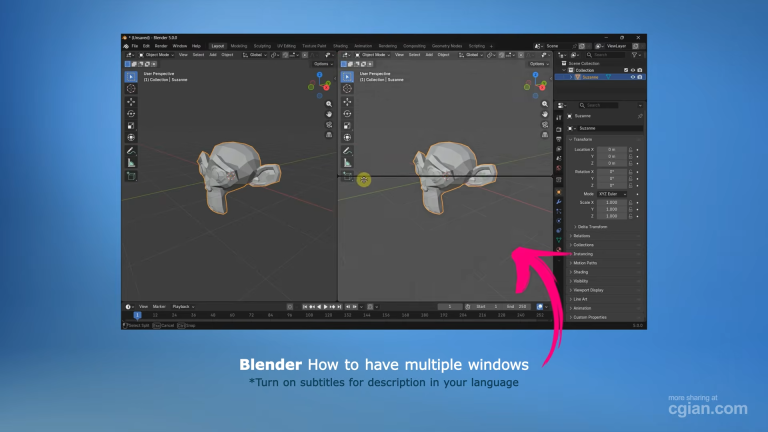
When you’re deep in a modeling session, constantly orbiting around your object to check different angles wastes precious time. Adding new windows in Blender lets you see your model from multiple perspectives simultaneously—front, side, top, and perspective views all at once.
This isn’t just about convenience; it’s about precision. When you can instantly reference your model from orthogonal views while sculpting details in perspective mode, you catch proportion issues early and work with confidence.
The Fastest Way to Add a New Window in Blender
Method 1: The Corner Drag Technique
The most intuitive way to add a new window is by grabbing the corner of any viewport:
- Hover your mouse cursor over the top-right or bottom-left corner of your 3D viewport
- Wait until the cursor changes to a crosshair icon
- Click and drag inward—horizontally for a vertical split or vertically for a horizontal split
- Release to create your new window
This method works anywhere in the Blender interface, not just the 3D viewport. You can split the UV editor, timeline, or any other panel this way.
Method 2: Right-Click Precision
For more control when you need to add a new window in Blender:
- Right-click on the edge between two viewports (or the outer edge of a single viewport)
- Select “Split Area” from the context menu
- A green line will appear—move your mouse to position the split exactly where you want it
- Click to confirm
This method gives you pixel-perfect control over where your new window appears, which is especially useful when you’re fine-tuning your workspace layout.
Removing Windows You Don’t Need
Sometimes you add too many windows and need to clean up. Here’s how:
- Right-click on the edge between two viewports
- Choose “Join Areas” from the menu
- An arrow will appear showing which direction the areas will merge
- Click to combine them
You can also use the “Join Up,” “Join Down,” “Join Left,” or “Join Right” options for directional control. This flexibility lets you customize your layout without restarting Blender.
The Quad View Shortcut Every Pro Uses
If you want to instantly add four windows in Blender with a single keystroke:
Press Ctrl + Alt + Q
This toggles the quad view layout, giving you:
- Top view (top-left)
- Front view (top-right)
- Right view (bottom-left)
- Perspective view (bottom-right)
This shortcut alone has saved countless hours for modelers who need constant access to orthogonal views. When you’re working on symmetrical objects or need to check proportions from all angles, quad view is indispensable.
To return to a single viewport, simply press Ctrl + Alt + Q again.
Advanced Workspace Tips
Once you know how to add a new window in Blender, take it further:
Save Custom Layouts
After setting up your perfect arrangement, go to the top menu bar and save your workspace. Name it something descriptive like “Modeling with Quad Views” or “UV + Shading Combo.”
Mix Different Editors
Each new window can display any Blender editor. Try combining:
- A 3D viewport for modeling
- An outliner for scene management
- A properties panel for quick adjustments
- A UV editor for texture work
Use Temporary Splits
Need a quick look at something? Split a viewport temporarily, check what you need, then join it back. This keeps your workspace clean while giving you on-demand flexibility.
Common Questions About Adding Windows in Blender
Q: Can I add a new window without using my mouse?
A: Yes! While there’s no direct keyboard shortcut for splitting, you can use Ctrl + Alt + Q for quad view, or navigate through the View menu. For mouse-free operation, use the right-click context menu which can be navigated with keyboard arrows.
Q: How many viewports can I have?
A: Technically, as many as your screen real estate allows. However, more than 4-6 viewports usually becomes impractical unless you’re on a massive monitor.
Q: Will my viewport settings carry over to the new window?
A: Each viewport maintains its own settings, including view angle, display mode (solid, wireframe, rendered), and overlays. This independence is what makes multiple viewports so powerful.
Q: Can I save my viewport layout for future projects?
A: Absolutely. Blender saves workspace layouts with your project file, and you can also create default startup files that load your preferred layout automatically.
Putting It All Together
Mastering how to add a new window in Blender is about more than just splitting screens—it’s about creating a workspace that matches your workflow. Start with the corner drag method for quick splits, use the right-click menu for precision, and leverage Ctrl + Alt + Q for instant quad views.
The best 3D artists don’t fight their software; they customize it to work for them. Multiple viewports give you the visual feedback you need to make better decisions faster, whether you’re blocking out basic shapes or detailing complex characters.
Ready to Level Up Your Blender Skills?
If you found this guide helpful, watch the full video tutorial that breaks down every viewport management technique with real-time demonstrations:
Watch the Complete Viewport Tutorial Here
The video shows you exactly how these techniques look in action, with step-by-step visual guidance that makes learning effortless. Subscribe and hit the notification bell to catch more Blender workflow tips that save you hours of frustration.
by blenderian
Related Posts,
How to Render Viewport Animation in Blender for Lightning-Fast Previews
How to Blender Lock Object in Place